

In this guide
- The Quick Answer
- What Makes a Good Christmas Zoom Background
- Best Christmas Backgrounds by Context
- How to Set Up a Virtual Background in Zoom
- Setting Up in Microsoft Teams
- Google Meet
- Creating Your Own Custom Christmas Background
- Christmas Backgrounds for Specific Industries
- Lighting: The Secret to Making Any Virtual Background Look Real
- Camera Position and Framing
- Where to Find Good Christmas Zoom Backgrounds
- DIY: Decorating Your Real Background
- What Not to Do
The Quick Answer
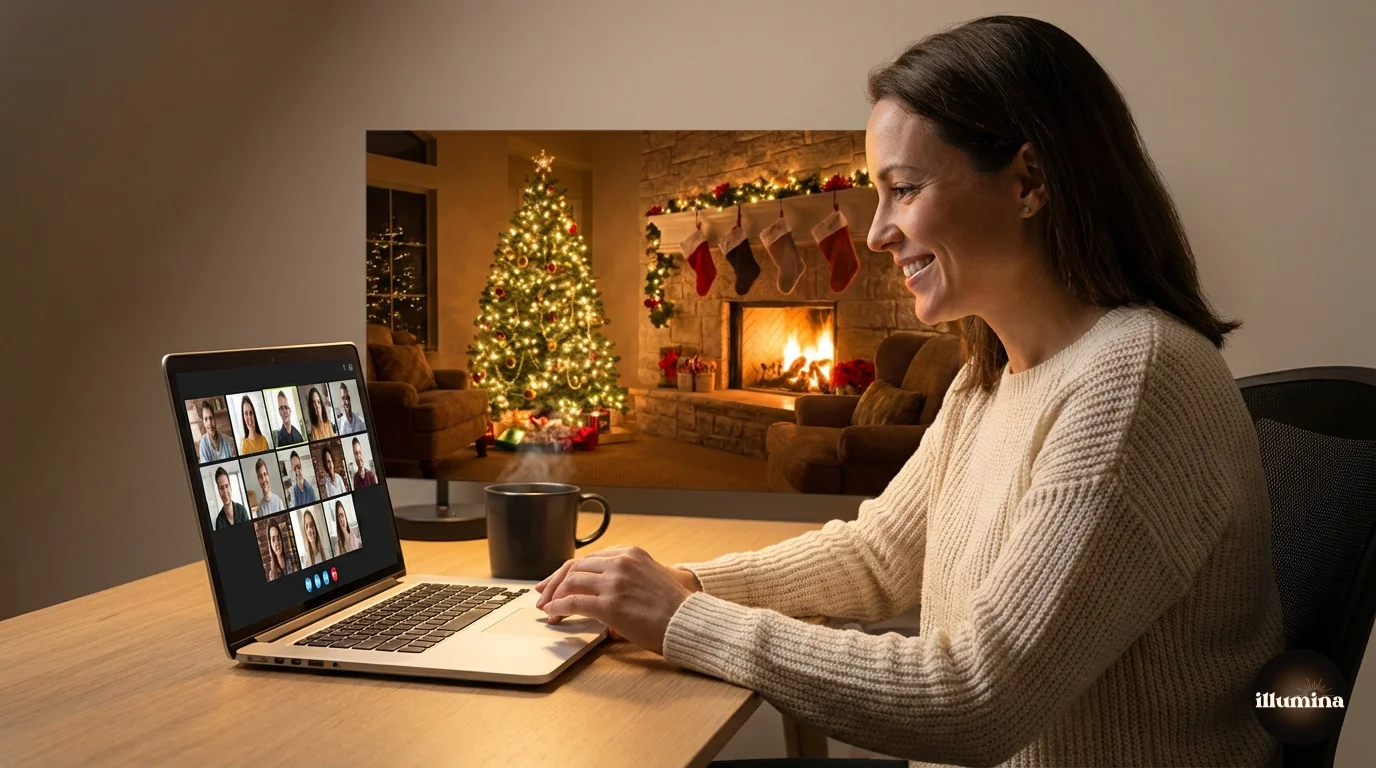
The best Christmas Zoom backgrounds are the ones that look like a real room, not a novelty gag. A cozy living room with a lit Christmas tree, a fireplace with stockings, or a snowy window scene all read as festive and professional on camera. Avoid the cartoon snowmen and clip art wreaths. They were funny in 2020 and they're painful now. Upload a high-quality holiday image as your virtual background in Zoom, Teams, or Google Meet, and you're set for every December meeting without decorating your actual office.
This guide covers the best types of Christmas Zoom backgrounds for different contexts (work meetings, client calls, holiday parties, family catch-ups), how to set them up properly so they look natural on camera, lighting and camera tips that make virtual backgrounds work better, and where to find quality holiday backgrounds that don't look cheap.
What Makes a Good Christmas Zoom Background
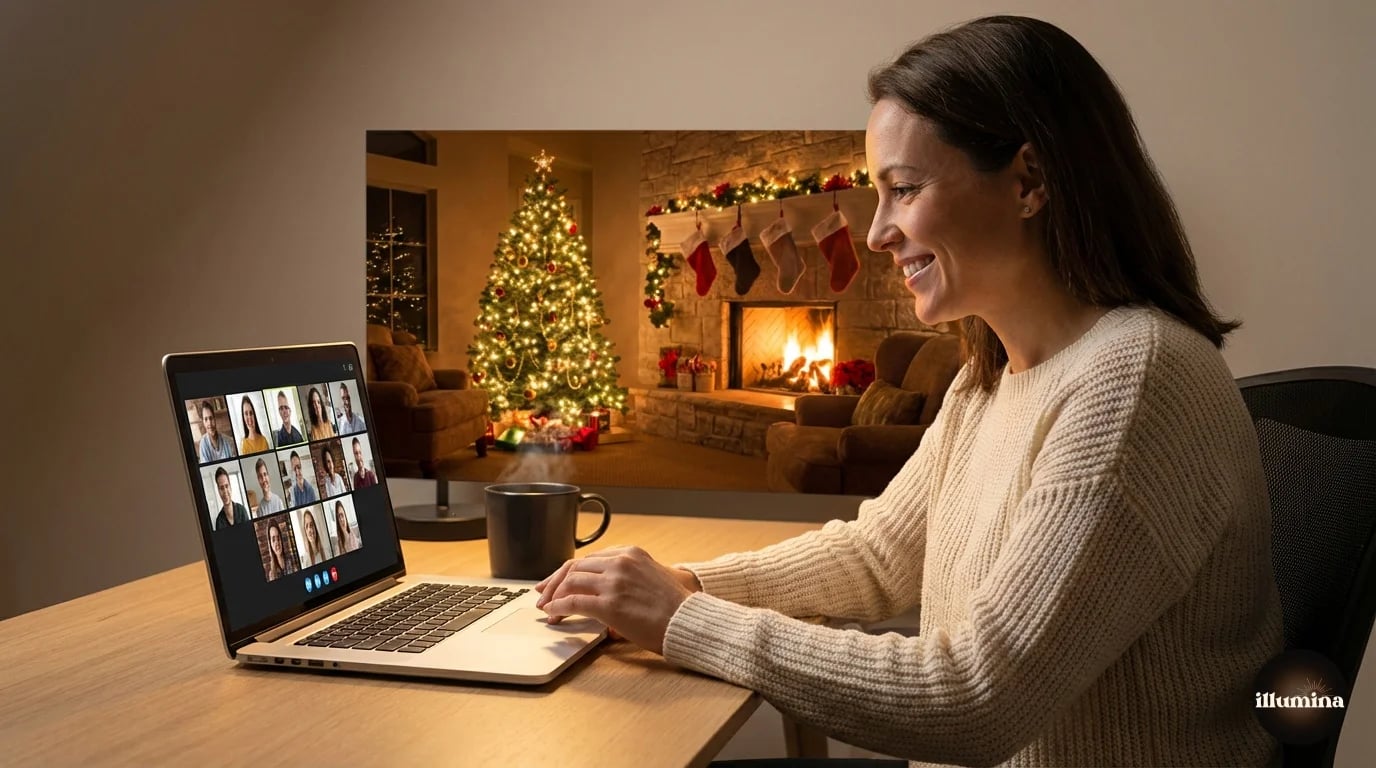
The same rules that apply to professional virtual backgrounds apply to holiday ones, just with tinsel. The background should be slightly blurred (like a real room seen from a webcam distance), have warm consistent lighting, and not compete with your face for visual attention.
Backgrounds that work well: a living room with a Christmas tree in soft focus, a fireplace with stockings and warm light, a snowy window scene with frost on the panes, a decorated hallway or staircase with garland, a coffee shop with holiday decorations in the background. These all feel like real places because they are (or look like) real places.
Backgrounds that don't work: cartoon illustrations of Santa's workshop, neon-colored Christmas graphics, images with text ("Merry Christmas!" plastered across the screen), any background busier than Times Square on New Year's Eve. If there's more going on behind you than in front of you, it's too much.
Match the formality to the meeting. A cozy fireplace works for a team holiday catch-up. A subtle wreath on a bookshelf works for a client call. A full Santa's grotto works for exactly zero professional meetings but is fine for family Zoom calls on Christmas morning.
Best Christmas Backgrounds by Context
Work Meetings and Standups
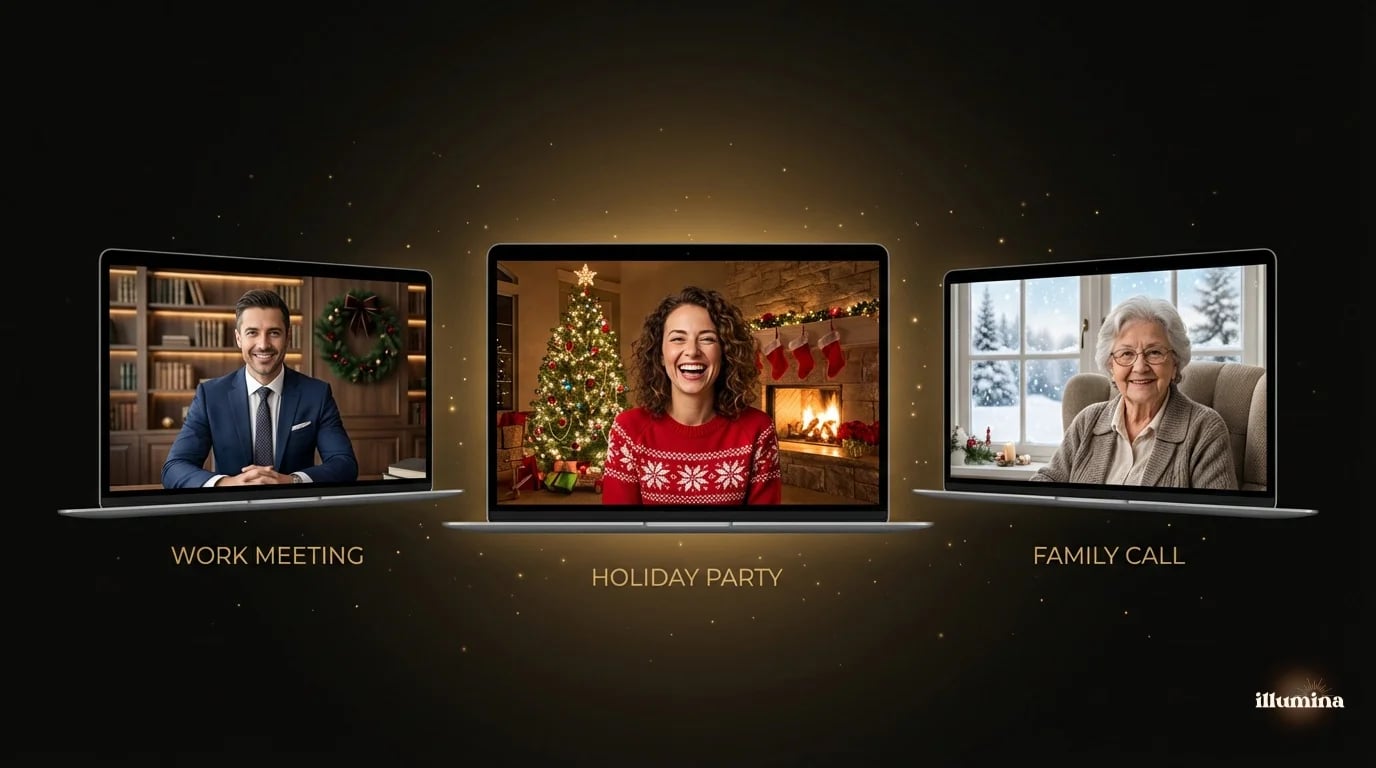
Keep it subtle. A bookshelf with a small wreath or a few ornaments. A window with a light dusting of snow outside. A clean desk setup with a miniature Christmas tree in the corner. The message is "I'm festive but I'm still working." Nobody needs to see a full Christmas village behind you during the Q4 revenue review.
For recurring meetings throughout December, one tasteful holiday background that you set and forget is better than changing it every day. The novelty wears off fast and your coworkers will appreciate consistency over creativity after the third meeting of the day.
Client Calls
Read the room. If you know the client celebrates Christmas and the relationship is warm, a subtle holiday background is a nice touch. If you're not sure, stick with your normal professional background and skip the festivity entirely. Nobody ever lost a client by not having a Christmas background. Some people have lost credibility by having an inappropriate one.
Safe choices: a softly lit room with a tasteful tree in the far background (blurred), warm golden lighting that suggests holiday ambiance without screaming it, or a winter scene (snowy forest, frosted window) that reads as seasonal rather than specifically Christmas.
Team Holiday Parties and Social Calls
Go for it. This is where the fun backgrounds belong. The ugly Christmas sweater party background. The North Pole workshop. The roaring fireplace with stockings personalized for your family members. If there was ever a time for the over-the-top Christmas background, it's the virtual holiday party. Lean in.
Family Catch-Ups
For family Zoom calls on Christmas Day or over the holidays, use something warm and personal. Your actual decorated living room (real camera, no virtual background) is always the best option if it looks decent. If your actual space isn't camera-ready, a cozy virtual background works. Grandma doesn't care about your virtual background skills. She just wants to see your face.
How to Set Up a Virtual Background in Zoom
Open Zoom, click your profile picture in the top right, go to Settings, then Backgrounds & Effects. Click the + button to upload your own image. Select it and it applies immediately. You'll see a preview of yourself against the new background.
For the best results, use an image that's at least 1920x1080 pixels. Anything smaller will look soft or pixelated on larger screens. JPEG or PNG both work. The image should be landscape orientation to match the typical webcam aspect ratio.
Zoom also offers a "Blur" option if you'd rather soften your real background instead of replacing it entirely. This is a good middle ground during December: blur your actual room and let whatever holiday decorations you have show through as soft, festive shapes behind you.
Setting Up in Microsoft Teams
In Microsoft Teams, click the three dots (More actions) in the meeting toolbar, then "Apply background effects." Click "Add new" to upload your Christmas background image. Select it and click "Apply." Teams also has a few built-in holiday backgrounds in its gallery during December, but they tend to be generic and low-resolution.
Teams is pickier about image quality than Zoom. Upload the highest resolution image you have. Blurry or compressed backgrounds look noticeably worse in Teams because the edge detection algorithm is less forgiving with poor-quality source images.
Teams also supports video backgrounds (short looping clips), which some people use for animated fireplace or falling snow effects. Fair warning: animated backgrounds eat CPU, cause frame drops on older laptops, and can make you look laggy to other participants. A clean static image almost always looks better than a stuttering animation. If you want the cozy fireplace feel, use a static fireplace photo. Your laptop will thank you.
Google Meet
In Google Meet, click the three dots in the bottom toolbar, then "Apply visual effects." You can upload custom images or use Google's built-in backgrounds. The custom upload option is under the "+" icon. Google Meet's virtual background engine is the weakest of the three major platforms, so good lighting on your face matters even more here.
Transform Your Photos
Give Your Photos the Wow Factor
Browse our collection of premium digital photo backdrops. 50 high-resolution print-ready backgrounds in each pack. Instant download.
Browse Backdrops

Creating Your Own Custom Christmas Background
If you can't find exactly what you want, making your own is easier than you'd think. You don't need Photoshop skills or a design background. A few approaches that work well:
Photograph your own space. If your living room looks good when it's decorated for Christmas, take a photo of it without anyone in the frame. Use your phone in landscape mode, stand where your webcam would be, and shoot at the widest angle. The result is a background that's literally your own room, which looks natural because it is natural. Slight blur from the phone's portrait mode can help it feel like a realistic webcam depth of field.
Use Canva. Open a 1920x1080 canvas, search Canva's stock library for "Christmas room" or "holiday fireplace," and drag in an image you like. Adjust brightness and warmth to match your typical webcam lighting. Export as PNG. The whole process takes about two minutes, and Canva's library is massive enough that you'll find something that works.
AI image generators. Tools like Midjourney and DALL-E can generate custom Christmas room scenes from a text description. Describe what you want ("a cozy living room with a decorated Christmas tree, warm golden lighting, bookshelf with ornaments, slightly blurred") and you'll get something unique. The quality is usually excellent for virtual backgrounds because they're viewed at webcam resolution where minor AI artifacts are invisible.
Christmas Backgrounds for Specific Industries
Different workplaces have different thresholds for holiday spirit on camera.
Tech and startups: pretty relaxed. A fun Christmas background in standups and team meetings is expected. Some companies even do themed background competitions in December. Go for it, just keep it clean.
Corporate and finance: subtle is the word. A bookshelf with a small wreath. A window with snow. Nothing more. If you're presenting to executives or clients, the background should whisper "holidays" not shout it.
Healthcare and education: warm and approachable. A softly lit room with a tree works. Avoid anything that assumes a specific religious celebration. "Winter" and "cozy" are universally safe. "Merry Christmas" text on screen is not, because not everyone in the meeting celebrates Christmas.
Creative industries: you have more latitude. Designers, photographers, and marketers can push the festivity further because visual personality is part of the professional brand. A beautifully styled Christmas flat lay or an artful ornament close-up shows taste and eye for design.
Lighting: The Secret to Making Any Virtual Background Look Real
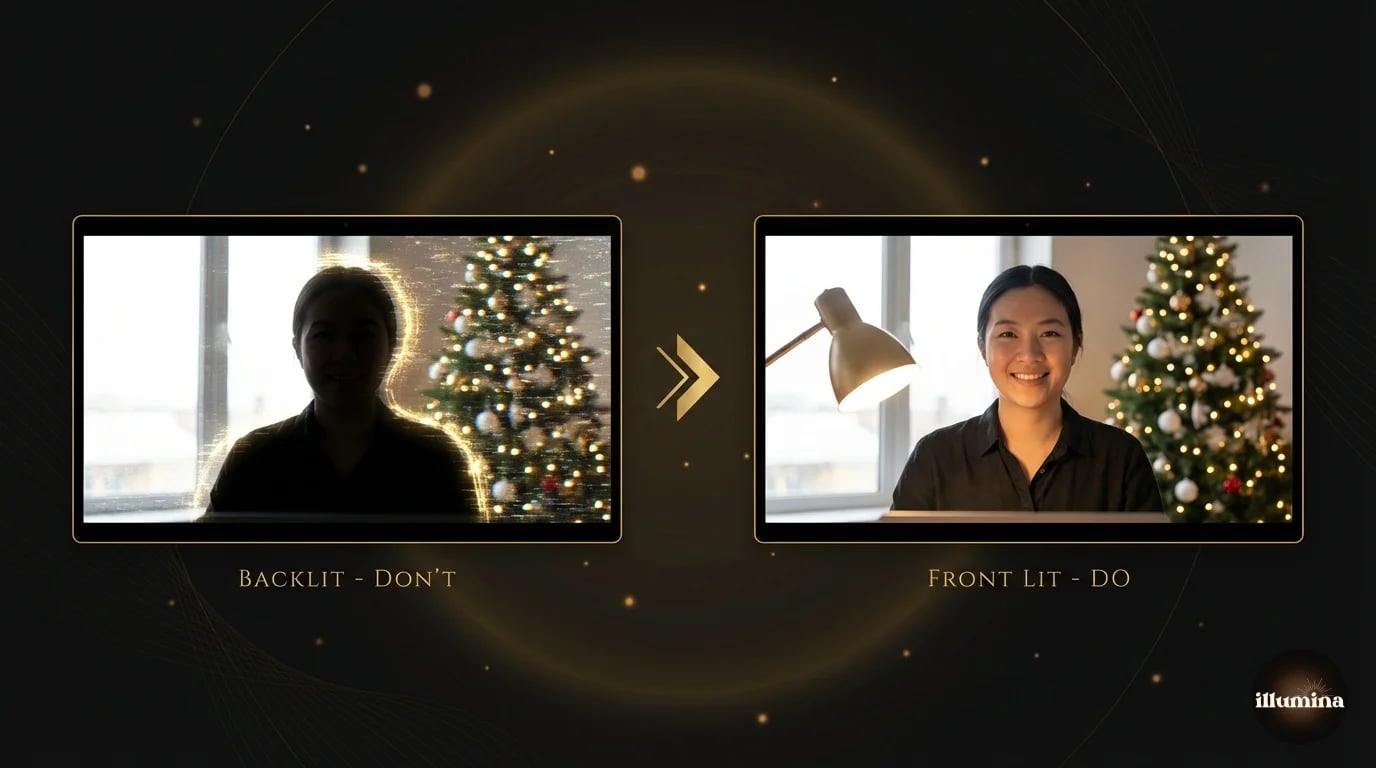
Every virtual background looks bad with bad lighting. The edge detection that separates you from your real background works by finding contrast between you and what's behind you. In dim lighting, there's not enough contrast, and you get the shimmering halo effect where parts of you disappear into the background.
The fix is simple: light your face from the front. A desk lamp pointing at your face from behind the laptop screen, a ring light mounted above the camera, or just sitting facing a window during daytime. The light source should be in front of you, not behind you. Backlighting is the single most common reason virtual backgrounds look terrible.
For Christmas Zoom calls specifically, warm-toned lighting (a lamp with a warm bulb, candles nearby but out of frame) creates a cozy feel that matches most holiday backgrounds. Cool fluorescent office lighting against a warm fireplace background creates a visual disconnect that your eyes pick up even if you can't articulate why it looks off.
Face a window or put a lamp behind your laptop. Front light is the single biggest improvement you can make to any virtual background. It takes five seconds to set up and makes you look like you're in the room the background is showing.
Camera Position and Framing
Your camera should be at eye level or slightly above. Most laptop cameras sit below eye level, which means viewers see up your nose and the ceiling takes up half the virtual background. Prop the laptop up on a stack of books or use a laptop stand. A camera at eye level looks more natural and gives the background image more room to breathe behind you.
Frame yourself from about the chest up with some headroom above. Too tight and you look cramped against the background. Too wide and your body takes up so little of the frame that the background dominates. The standard news-anchor framing (head and shoulders, centered, a hand-width of space above the head) is the right target.
If you're using a physical webcam, position it at the top center of your monitor. External webcams almost always produce a better image than built-in laptop cameras, and the higher position gives a more flattering angle with more background visible.
Where to Find Good Christmas Zoom Backgrounds
Free options are everywhere in December. Unsplash, Pexels, and Pixabay all have holiday photos that work as Zoom backgrounds. Search for "cozy Christmas room," "fireplace Christmas," or "snowy window." Look for images that are horizontal, high resolution (at least 1920x1080), and not overly saturated. The best ones look like a real room photographed with a good camera, not a stock photo designed to look "Christmassy."
For something more polished, premium background packs designed specifically for virtual meetings give you a curated set of consistent, high-quality options. These are usually color-graded, properly framed for webcam aspect ratios, and designed to look natural on camera rather than just being repurposed stock photos.
If you want holiday backgrounds that also work year-round (cozy rooms, elegant offices, warm bookshelves that happen to have subtle seasonal touches), that's what we make at Illumina Backdrops. The Christmas packs give you full-on holiday scenes, and the Zoom office packs give you evergreen professional backgrounds you'll use all year.
Our comprehensive Zoom backgrounds guide covers the full range of professional virtual backgrounds beyond the holiday season, including office setups, creative spaces, and tips for year-round use.
DIY: Decorating Your Real Background
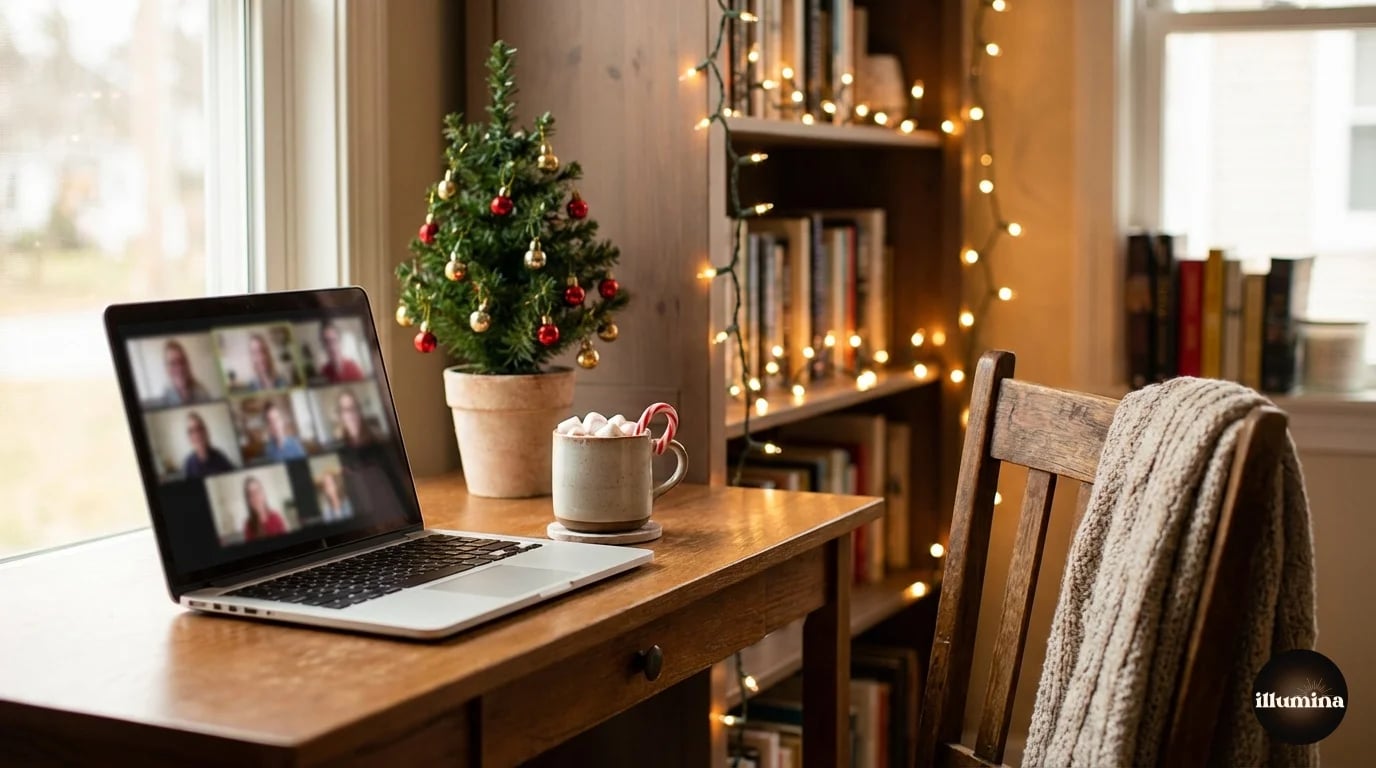
If virtual backgrounds feel too artificial (or your internet connection doesn't handle them well), decorating a small section of your real room is always an option. You don't need to decorate the whole room. Just the area visible behind you on camera.
A small tabletop Christmas tree on a shelf behind you. A string of warm white fairy lights along a bookcase. A wreath hung on the wall directly behind your chair. These small touches show up on camera as tasteful and real, because they are real. And they work perfectly with Zoom's blur feature: blur the background slightly and the fairy lights become beautiful warm bokeh circles behind you.
Fairy lights plus blur mode is the easiest holiday upgrade. String warm white lights behind you, turn on Zoom's background blur, and the lights become gorgeous soft bokeh circles. It looks professional, festive, and takes about two minutes to set up.
Another easy DIY trick: a single piece of Christmas-themed fabric (plaid, tartan, a subtle snowflake pattern) draped over a chair or bookshelf behind you adds holiday texture without any setup beyond pinning fabric to furniture. Iron it first. Wrinkled festive fabric looks like a costume department reject.
What Not to Do
Animated Christmas backgrounds. The falling snow and twinkling lights might seem fun, but they're distracting in a meeting and they tank your video quality because Zoom has to process the animation on top of the edge detection. Static images look better and perform better.
Audio backgrounds with Christmas music. Some virtual background apps let you add ambient sound. Please don't. Background jingle bells while someone is presenting a budget update is not the vibe anyone is looking for.
Green/red backgrounds that clash with your outfit. If you're wearing a red sweater and your background is red, you'll melt into it. If you're wearing green and the background is a green wreath, same problem. Check what you're wearing against the background before the meeting starts.
Using a different novelty background every meeting. The first one gets a laugh. The second gets a smile. By the fifth, people are tired of it. Pick one good holiday background and stick with it for the season.
Premium holiday backgrounds for your virtual meetings



A good Christmas Zoom background is one that makes you look festive without making you look unprofessional. Find one you like, set it up once, and forget about it until January. The holidays are busy enough without redesigning your virtual office every morning.
One last thought: the best virtual backgrounds in the world won't help if your camera is grainy, your lighting is dim, or your microphone sounds like you're calling from a tin can. December is a good time to invest thirty seconds in checking your setup. Good front light, clean camera lens (wipe it with your shirt, seriously, it's probably smudged), and headphones or a decent mic. The background is the frame. You're the picture. Make sure the picture looks good first.
Transform Your Photos
Give Your Photos the Wow Factor
Browse our collection of premium digital photo backdrops. 50 high-resolution print-ready backgrounds in each pack. Instant download.
Browse Backdrops