
In this guide
- Quick Answer
- Real Home Office vs Virtual Background
- The Physics of Why Most Home Office Backgrounds Look Bad
- Choosing a Virtual Background That Does Not Look Fake
- The Physical Setup: What Improves Your On-Camera Look
- The Camera and Audio Choices That Matter
- Framing: Where to Put Yourself in the Frame
- Building a Cohesive Professional Look
- Industry-Specific Backgrounds That Work
- Handling Interruptions: Pets, Kids, and the Doorbell
- Privacy and Security Considerations
- Common Mistakes
- What Comes Next
Quick Answer
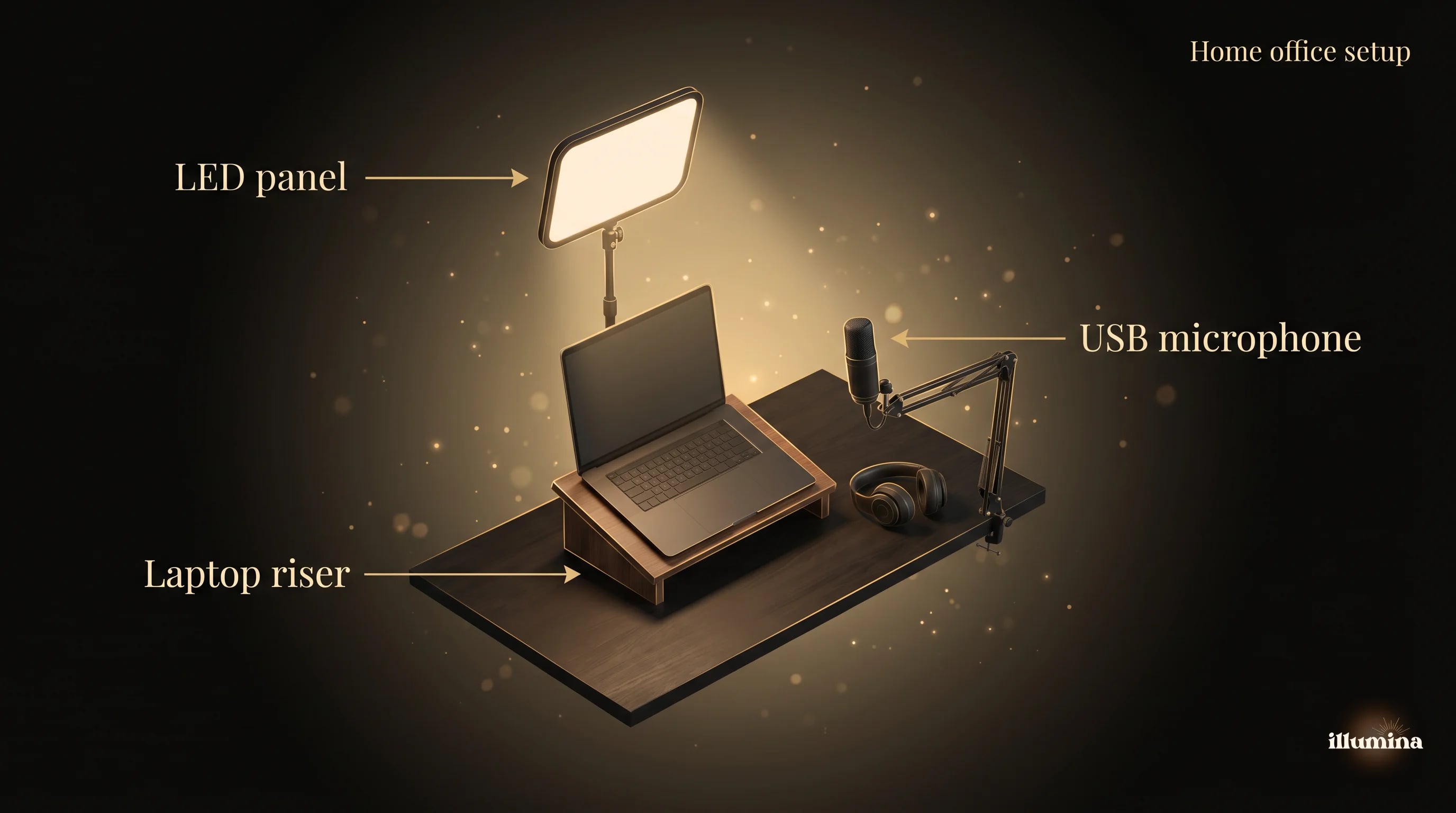
A professional home office Zoom background comes down to four decisions: a clean, uncluttered backdrop (real or virtual), a light source in front of you rather than behind, a camera at eye level (not looking down your nose), and an image that reads as "thoughtful home office" rather than "random corner of my living room." You do not need an expensive setup. You need good light and intentional framing. A $30 LED panel, a laptop riser, and a virtual background you can commit to will make you look better on camera than a $2,000 home office setup without those three.
This guide covers how to set up the physical space, how to pick and customize a virtual background that does not look like every other sales rep on your team, and the camera and lighting choices that matter.
Real Home Office vs Virtual Background
The first decision is whether to show your actual home or to use a virtual backdrop. Each has a case.
Real home office wins when: You have a thoughtfully-designed workspace that signals competence and care. Bookshelves with visible spines, framed art, a plant or two, and neutral wall color all read as professional. The quality is authentic because it is real.
Virtual background wins when: Your home is lived in by other people, pets, or small humans who do not respect the sanctity of your Zoom calls. You work from a shared space (kitchen, bedroom, spare corner). You want to project a specific look (clean modern office, bookstore, warm cafe) that your actual space cannot deliver. You change locations frequently and want consistency.
The middle option is a hybrid. A small physical backdrop (a collapsible roll-up panel, a hung piece of fabric, or a custom backdrop behind your chair) gives you a clean, controlled background that photographs cleaner than a virtual background but simpler than staging a full office. This is what most professional podcasters and YouTubers use, and it translates directly to video calls.
The Physics of Why Most Home Office Backgrounds Look Bad
Three technical issues explain 90 percent of bad-looking home office setups, and fixing them requires no money.
Backlighting. A window behind you puts the camera in an impossible lighting situation. The camera either exposes for the window (making you a silhouette) or exposes for you (making the window a blown-out white smudge). Either way, you look bad. Move the window to your side or your front. If the desk cannot move, pull the blinds during calls.
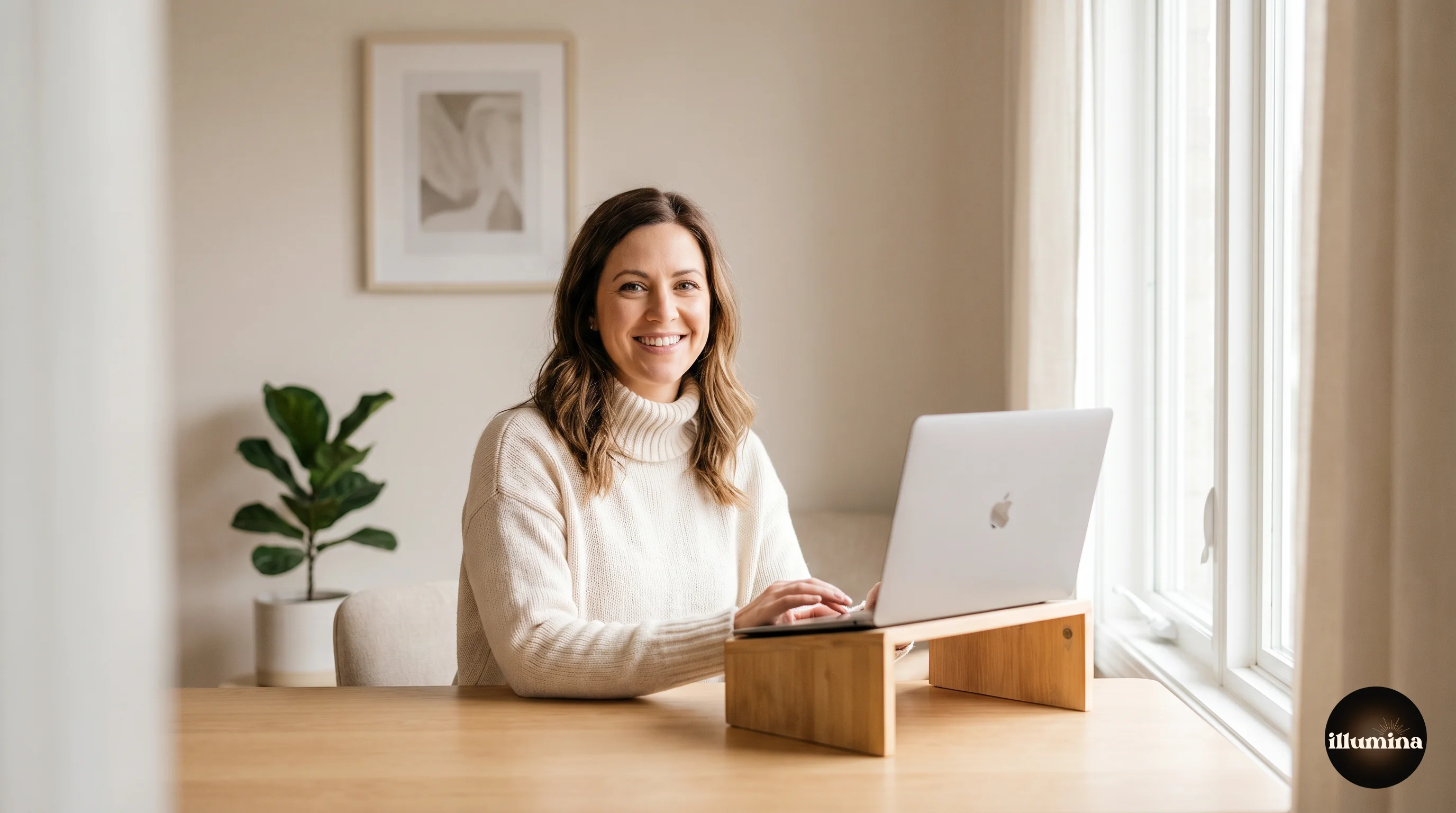
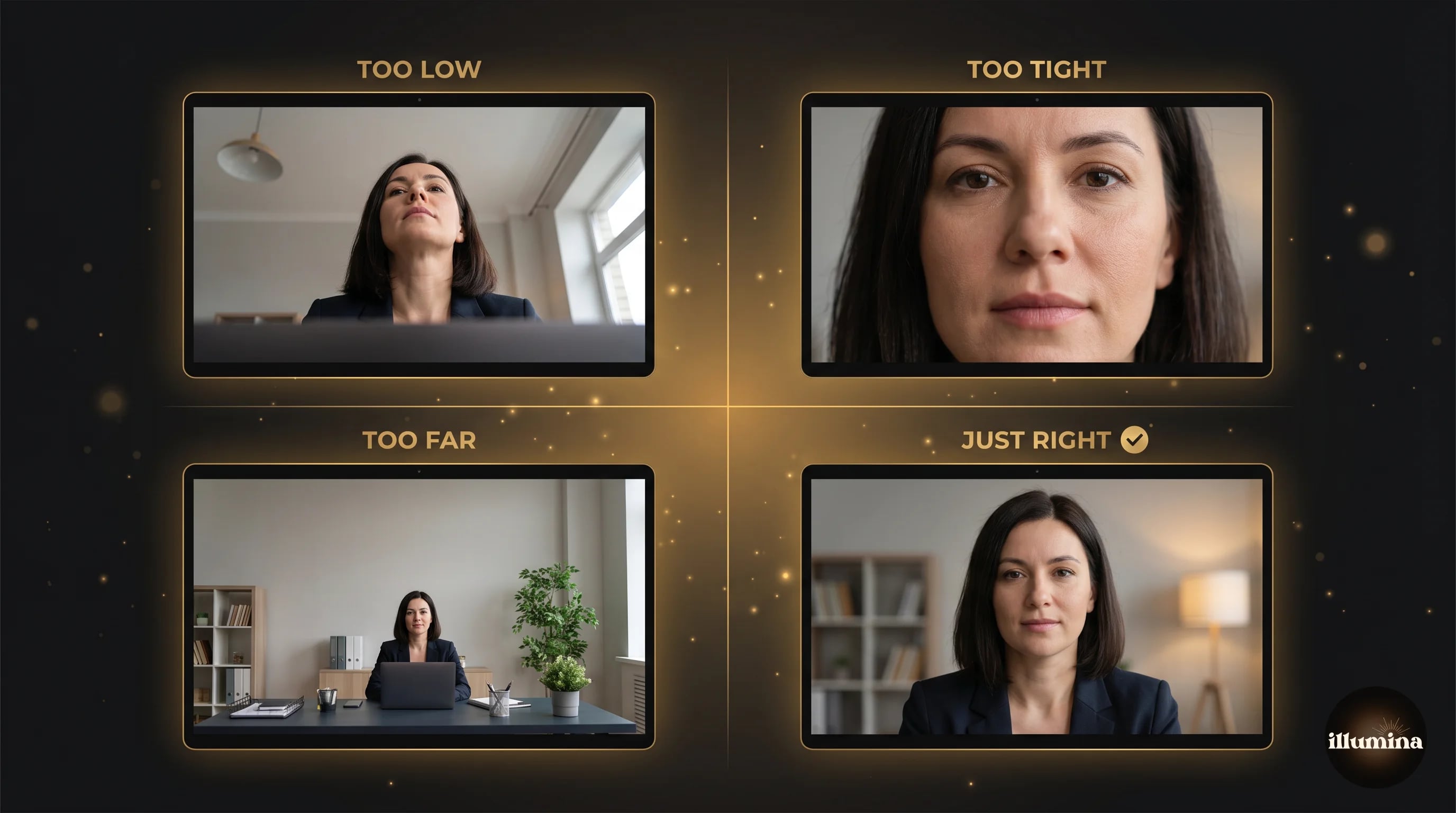
Low angle. A laptop on a desk puts the camera below your chin, looking up your nose. This is unflattering on everyone. Raise the laptop with a stand or a stack of books until the camera is at eye level. A $15 laptop stand solves this permanently.
Wide focal length. Laptop cameras are wide-angle by design, which distorts faces (bigger nose, smaller ears) at close range. Sit farther back from the camera if you can, at least an arm's length. This also gives the background room to breathe and signals presence rather than intimacy.
Put the light source in front of you, not behind you. A window, a lamp, or a ring light in front of you (behind the camera) lights your face evenly. Backlighting creates silhouettes. Side lighting creates harsh shadows on one half of your face. Front lighting is the flattering option and the one laptop cameras are calibrated for.
Choosing a Virtual Background That Does Not Look Fake
The hardest part of virtual backgrounds is that most of them look obviously fake, and that obvious fakeness undermines the professional image you are trying to project. A few principles help.
Choose something that could plausibly be your office. A tropical beach behind you on a Monday morning 10 AM call undermines your credibility. A generic modern office or a book-lined library could plausibly be where you are working.
Commit to it for the long term. Changing your virtual background every week makes you look unserious. Settle on one you like and stick with it for months. Your colleagues should know your background the way they know your face.
Look for depth cues in the image. A background where lines converge behind you (doors, shelves, architectural elements receding into the distance) looks more real than a flat image. The brain reads depth cues and accepts the fake as real.
Avoid cliches. No beaches, no space stations, no fake libraries with visible photo-watermark distortions. The virtual backgrounds that ship free with Zoom and Teams are immediately recognizable, which makes them feel lazy.
For the full breakdown of virtual background setup including platform-specific instructions, see our complete zoom virtual backgrounds guide. For the professional, executive-grade look see our professional headshot backgrounds guide. For Microsoft Teams and Google Meet specifically, we also cover Teams backgrounds and Google Meet backgrounds.
The Physical Setup: What Improves Your On-Camera Look
If you are going to invest in one thing for video calls, make it light. A good light changes your camera output more than a new camera, a better internet connection, or fancier software.
Option 1: Window light (free). A window in front of you at 9 AM on an overcast day is free studio lighting. Schedule important calls for this window if you can. The limitation is that window light changes with the weather and time of day, so it is not reliable.
Option 2: LED panel ($30 to $150). A small LED panel on a desk stand gives you consistent light regardless of time of day. Look for one with adjustable color temperature (3200K to 5600K) and adjustable brightness. Set it to about 4500K (neutral warm) and point it at your face from behind the camera.
Option 3: Ring light ($40 to $200). Rings lights are a specific subset of LED panels that produce a ring-shaped catchlight in your eyes. They work well for some faces and look weird on others. Try before committing.
Option 4: Softbox ($80 to $250). A small softbox (12 to 18 inches) at desk distance produces the softest, most flattering light. Overkill for most video calls, but if you are on camera all day, worth the investment.
Combine any of these with a laptop stand that puts the camera at eye level, and you have better technical quality than most executives at Fortune 500 companies have on their calls.
The Camera and Audio Choices That Matter
The laptop camera is always the weakest link in a home office video setup. A few choices can upgrade it.
External webcam ($60 to $200). A dedicated webcam at 1080p or 4K blows laptop cameras out of the water. Logitech's Brio and Brio 500 are standard choices. Point the webcam directly at your face, not at your forehead or your chest.
Use your phone as a webcam. iPhones running iOS 16+ can serve as a Mac webcam via Continuity Camera. Android phones can do similar via apps like DroidCam. Modern phone cameras are often better than dedicated webcams at twice the price.
USB microphone ($60 to $150). Audio quality matters more than video quality on calls. A USB mic (Blue Yeti, Shure MV7, or similar) turns you from "small distant voice" to "clear presence." People on the call notice this even if they cannot articulate why.
Headphones. A wired or wireless headset prevents the echo and feedback that plague laptop-speaker calls. Even a cheap pair improves the experience for everyone on the call.
Audio is the single upgrade that most people underestimate. Good audio on a bad-looking video call is forgiven; bad audio on a good-looking video call is not. The person on the other end will give up listening to you before they complain about your background. Spend your first $100 on audio, not on a better backdrop.
Transform Your Photos
Give Your Photos the Wow Factor
Browse our collection of premium digital photo backdrops. 50 high-resolution print-ready backgrounds in each pack. Instant download.
Browse Backdrops



Framing: Where to Put Yourself in the Frame
How you fill the frame signals more than you think. The rules that translate from professional portraiture to video calls.
Rule of thirds. Put your eyes roughly one-third of the way down from the top of the frame. Not in the center, not at the top. One-third down is where the brain wants the subject's eyes to be.
Headroom. Leave a little space above your head, but not much. A few inches is fine. A foot of empty ceiling above you makes you look small in the frame.
Shoulder width. Fill the frame from shoulder to shoulder with a little space on each side. Do not squeeze in tight. Do not leave huge empty space on either side.
Body position. Turn your body slightly (about 15 degrees) rather than facing the camera dead-on. This is a cleaner, more cinematic look than direct-facing. Keep your eyes on the camera but shoulders slightly angled.
All four of these are free and take 30 seconds to adjust. Combined, they upgrade a video call from "amateur" to "considered."
Building a Cohesive Professional Look
For people who are on camera every day (sales, consulting, client services, executive roles), the cumulative effect of dozens of calls matters. Consistency builds trust. A few choices to lock in once and then stop thinking about.
Pick one virtual background and use it every single call. If you change industries or roles, update the background then. Not before.
Set your lighting once at a fixed spot on your desk and leave it there. Do not chase better light for each call. Consistency beats marginal improvement.
Keep one neutral top and one formal top within reach of your desk. You can change in three minutes if a call requires a more polished look.
Review your own video on a quarterly basis. Join a test call with yourself and look at what colleagues see. Small issues (cable visible, half a plant in frame, a mug from a year ago still on the desk) compound over hundreds of calls. A 30-minute cleanup each quarter keeps the setup fresh.
Industry-Specific Backgrounds That Work
Different professions signal different things through their backgrounds. What reads as right for one industry reads as wrong for another.
Legal, finance, and consulting. Clean, classic, slightly formal. Book-lined shelves, a modern but not trendy office, or a soft neutral backdrop. Avoid anything that looks casual or playful.
Creative, marketing, and tech. Modern and curated. Exposed brick, plants, an interesting piece of art, or a minimalist office. Can be more relaxed than legal or finance, but still intentional.
Healthcare and education. Warm, approachable, not too formal. Soft-colored walls, a bookshelf with textbooks, or a simple office. Clinical sterile backgrounds feel cold in these fields.
Real estate and sales. Aspirational. A nice home office, a view, or a well-designed backdrop that signals you live a life your clients would want to live. But avoid obvious luxury signaling, which undermines trust.
Executive and leadership. Understated and confident. A single tasteful piece of art, a clean desk, a strong backdrop. The message is "I have been thinking about something other than my video call setup" rather than "look at how nice my office is."
Handling Interruptions: Pets, Kids, and the Doorbell
The worst home office video calls are the ones where life walks in. Dogs bark, children interrupt, the package delivery rings the doorbell, and the carefully-constructed professional image collapses in real time. Planning for interruptions matters more than avoiding them.
Schedule buffer. If you know your dog barks at the 2 PM mail delivery, do not schedule important calls at 2 PM. Time patterns are more predictable than individual events.
Close the door. Even if the room has no door, a physical barrier (a folding screen, a curtain, a repositioned bookcase) signals to other household members that you are unavailable. This is more effective than a verbal reminder.
Silence notifications. Desktop notifications, phone alerts, smart speakers, and doorbells all pop up on calls at the worst times. Silence the obvious ones before each meeting and leave them silent for the whole block.
Keep the virtual background on. One major advantage of virtual backgrounds over real ones is that a person walking behind you gets mostly edited out. Even if Grandma walks in for a mug of tea, the virtual background hides most of it. This alone is worth the small fake-ness of the virtual look.
Have a recovery phrase. When something does go wrong, a quick, warm acknowledgment ("sorry, give me one second") and a fast recovery matter more than pretending it did not happen. Most people on the other end are sympathetic. The goal is professionalism under pressure, not perfection.
Privacy and Security Considerations
What is behind you during a call can leak more than you realize. A few categories worth thinking about before your next call.
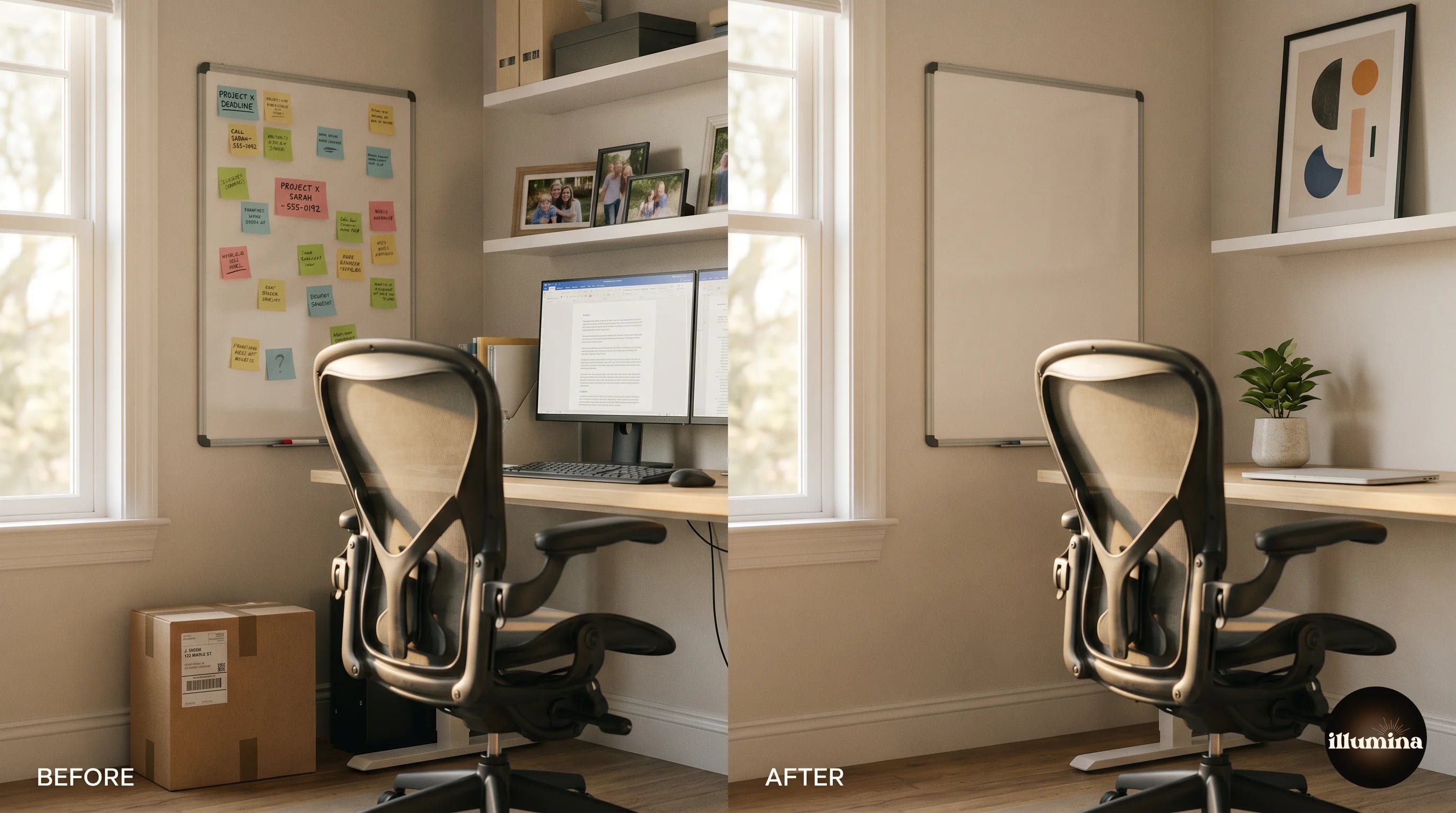
Whiteboards and sticky notes. Password hints, customer names, strategic information, or personal notes on visible surfaces. Turn them around or cover them before sensitive calls.
Computer screens. A second monitor reflected in a window or visible to the camera can expose email content or confidential documents. Angle screens away from the camera.
Family photos, mail, and personal items. Addresses on packages, kids' school names on photos, and mail with visible addressing can expose information about your home or family. Remove or obscure anything that identifies where you live.
Medications and personal care items. Bottles on a dresser, prescription bags, or other personal items that are in frame by accident. Do a 10-second scan of the background before every call.
The paranoid version of this is to use a virtual background exclusively for any call involving colleagues you do not know well, clients, or vendors. The background is either a specific designed image or a plain color. Zero information leaks.
Nothing in your real background should tell a stranger where you live, who you live with, or what your daily routine looks like. Your Zoom calls are recorded more often than you realize, and screenshots of calls end up on slides and shared documents. Assume every frame of your background will be seen by someone who is not on the call.
Common Mistakes
Too much clutter in the real background. If your real background is visible, remove anything that is not intentional. The coffee mug from yesterday, the laundry basket, the half-unpacked Amazon box all undermine the professional signal.
Backgrounds that fight the subject. A busy virtual background (a book cover collage, a complex pattern, or a bright gradient) competes with your face for attention. Keep backgrounds calm.
Changing backgrounds constantly. Signals instability or that you are trying too hard. Pick one. Stick with it.
Lighting from behind. Already mentioned, but it is so common and so damaging that it deserves a second mention. Move the light in front of you.
Ignoring audio. Bad audio cancels all the work you put into the visual setup. Use headphones and a decent microphone.
Never reviewing your own video. Most people have not seen what they look like on their work calls. Record a test once a quarter and watch it back.
Professional home office virtual backgrounds
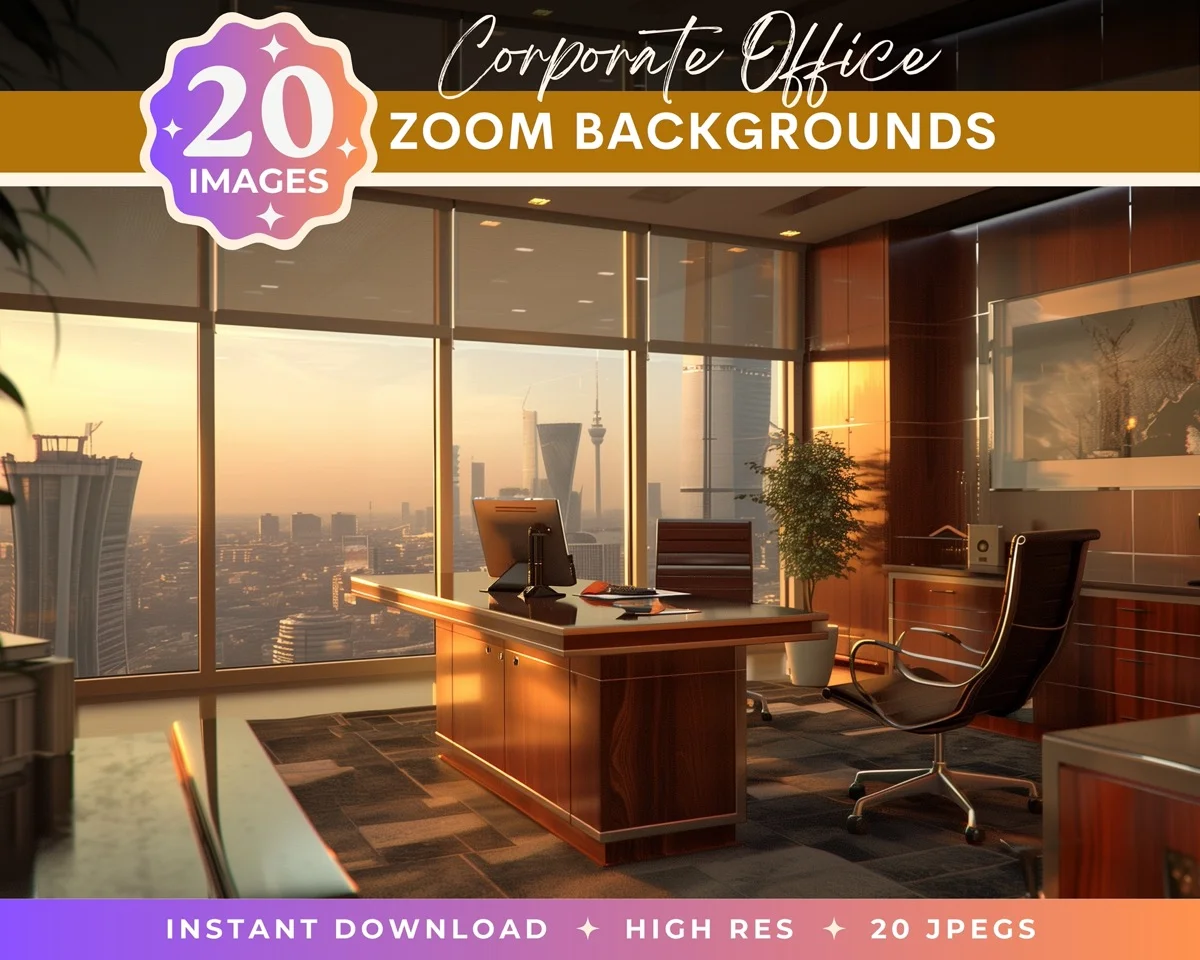


The free virtual backgrounds that ship with Zoom, Teams, and Google Meet are recognizable on sight. Using one signals that you took the path of least resistance. A designed virtual background at 1920x1080 and 3840x2160 resolution matched to your profession produces the executive-grade look that free defaults never will. Browse the full Illumina Backdrops zoom collection for corporate, library, and professional home office packs.
What Comes Next
The setup matters, but so does the image you fill the frame with. If you want a polished virtual background that fits the profession you work in, we design Illumina Backdrops Zoom backgrounds specifically for home office, corporate, and professional virtual meeting use. Each pack includes perspective-correct backgrounds at 1920x1080 and 3840x2160 resolutions tuned for consistent appearance on Zoom, Teams, and Google Meet.
For more on setting up virtual backgrounds across platforms, see our complete Zoom guide, Teams guide, Google Meet guide, and professional headshot backgrounds for dedicated headshot setups.
Transform Your Photos
Give Your Photos the Wow Factor
Browse our collection of premium digital photo backdrops. 50 high-resolution print-ready backgrounds in each pack. Instant download.
Browse Backdrops