


In this guide
- Quick Answer
- How to Set Up Virtual Backgrounds in Teams
- Teams Built-In Backgrounds
- Custom Background Best Practices
- Professional Backgrounds by Role
- Teams Background Blur
- Lighting Tips for Teams
- Teams vs Zoom vs Google Meet
- Managing Backgrounds in Your Organization
- Accessibility Considerations
- Performance Optimization
Quick Answer
Microsoft Teams lets you blur your background, use built-in virtual backgrounds, or upload custom images. Click the three dots in the meeting toolbar, select "Apply background effects," and choose from the gallery or click "Add new" to upload your own. Teams has a larger built-in library than Google Meet and better edge detection, sitting between Zoom (best) and Meet (most basic) in quality. For the sharpest results, use images at 1920x1080 or higher resolution and make sure your face is well-lit from the front.
This guide covers everything you need for professional Teams backgrounds: setup on desktop and mobile, the best backgrounds for different work contexts, custom background creation, lighting optimization, and how Teams compares to Zoom and Google Meet for virtual backgrounds.

How to Set Up Virtual Backgrounds in Teams
Before a Meeting
Open Microsoft Teams and join a meeting. On the preview screen before joining, look for the background effects toggle (person icon with a background). Click it to open the background panel on the right side. You will see blur options, Microsoft's built-in backgrounds, and any custom backgrounds you have previously uploaded.
To add a custom background, click "Add new" at the top of the panel. Select a JPEG or PNG file from your computer. The image appears in your custom backgrounds collection and stays there permanently until you remove it. Select the background and click "Apply" or "Apply and turn on video." You are set.
During a Meeting
Click the three dots (More actions) in the meeting toolbar at the top of the screen. Select "Apply background effects." The same panel opens on the right side. You can switch backgrounds mid-call without disconnecting. The transition takes about one second and is visible to other participants, so do it during a natural pause rather than while someone is speaking.
On Mobile
Teams mobile (iOS and Android) supports virtual backgrounds. Before joining, tap the background effects icon on the preview screen. During a meeting, tap the three dots at the bottom, then "Background effects." The mobile app has fewer built-in options than desktop but supports custom uploads. Performance depends on your phone's processor, and older devices may see lag or edge flickering with complex backgrounds.
Teams for Web
Teams in a web browser has more limited background support than the desktop app. Background blur works in Chrome and Edge, but custom virtual backgrounds may not be available depending on your browser version and organization settings. For the full background experience, use the desktop application.
Build a library of 5-7 backgrounds for different contexts. Teams saves your uploaded backgrounds permanently, so build a small collection: one professional office, one casual home office, one blurred option, and a few seasonal or themed options. Having them pre-loaded means you can switch contexts in two clicks instead of hunting for files.
Teams Built-In Backgrounds
Microsoft includes a larger library of built-in backgrounds than Google Meet, organized loosely by category. You will find office spaces, nature scenes, abstract art, and seasonal themes that Microsoft adds throughout the year. The quality varies. Some look natural and photograph well, others are clearly stock images that scream "virtual background."
The best built-in options are the simpler ones: soft-focus office interiors, clean bookshelves, and abstract color gradients. These work because they do not try to be specific locations. They just provide a clean, professional-looking space behind you. The worst built-in options are the highly specific ones: recognizable landmarks, branded spaces, and overly detailed scenes that draw attention away from the speaker.
Microsoft also adds themed backgrounds for events (Pride Month, Earth Day, holidays). These can be appropriate in internal meetings and team celebrations but use them judiciously in external calls. Not everyone shares the same cultural context, and a themed background can be distracting when the meeting is about quarterly results.
Custom Background Best Practices
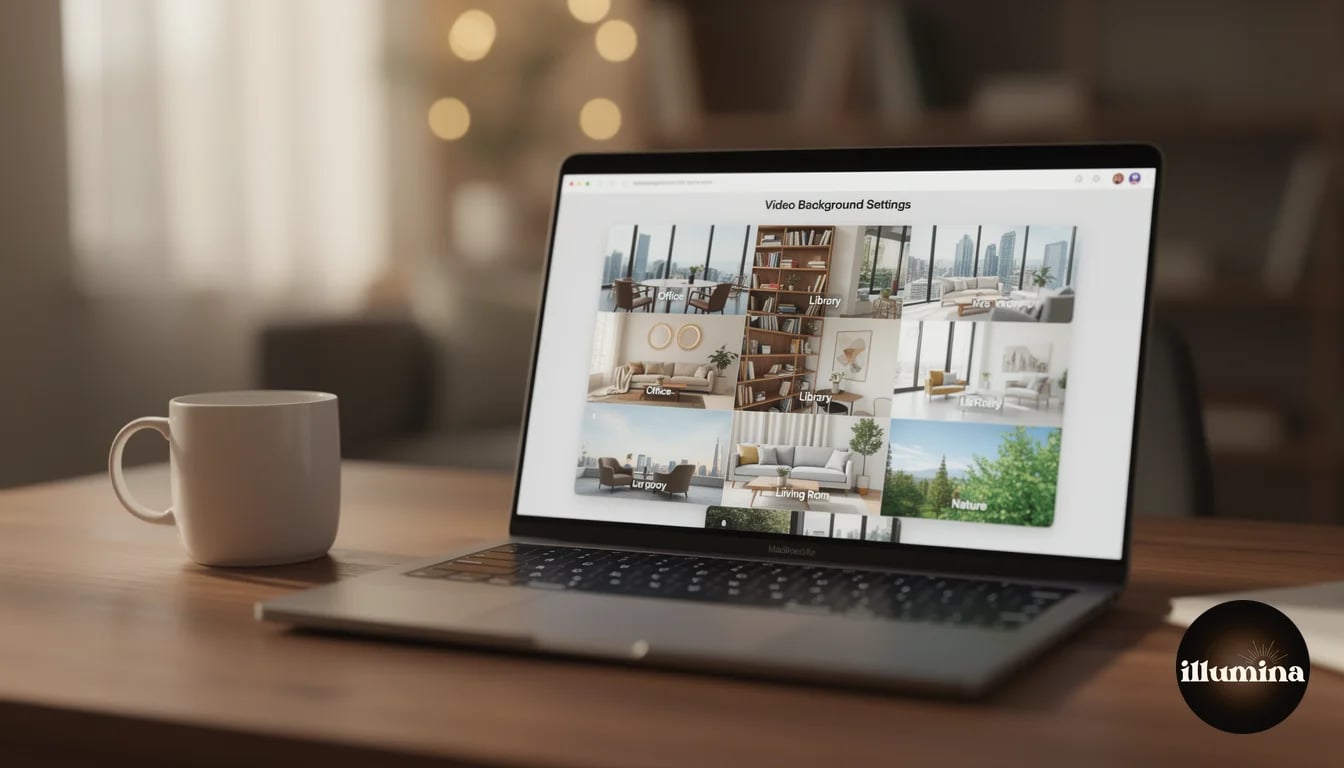
Custom backgrounds are where you differentiate yourself from everyone else using the same Microsoft defaults. A few guidelines for backgrounds that look professional and natural.
Resolution matters more in Teams than in Zoom. Teams' rendering engine is pickier about image quality, and low-resolution backgrounds look noticeably soft and pixelated, especially on larger monitors. Use images at 1920x1080 minimum. 2560x1440 or higher is better if you regularly present on large screens or 4K displays.
Aspect ratio should be 16:9 to match standard webcam output. If you upload a square or portrait-oriented image, Teams will crop it to fit, and the crop may cut off important elements. Always use landscape images designed for screen display.
Depth of field sells the illusion. The best virtual backgrounds have a slight blur or bokeh quality, as if the camera is focused on where you would be sitting and the background is naturally out of focus. A razor-sharp background looks fake because real webcams do not render a room in perfect focus from foreground to background. Adding a subtle Gaussian blur (2-4 pixel radius) to any background image before uploading makes it look more natural on camera.
Avoid text, logos, or small details in backgrounds. They become unreadable at webcam resolution and look like clutter. If you want to subtly brand your background (your company logo on a wall, for example), make it large enough to be recognizable but subtle enough to not dominate the frame.
Professional Backgrounds by Role

The right background depends on who you are talking to and what impression you want to create.
Managers and team leads. A clean, organized office background with warm lighting suggests approachability and competence. A bookshelf with a mix of professional books and personal items (a plant, a photo frame) projects authority without rigidity. Avoid overly luxurious backgrounds (mahogany desks, leather chairs, panoramic views) unless that is genuinely your environment. Pretending to be in a corner office when your team knows you work from a spare bedroom undermines trust.
Individual contributors. More flexibility. A home office with personality, a creative workspace, or even a tasteful living room background is fine for daily standups and team meetings. For meetings with leadership or clients, switch to something more polished. This is why having a small library of pre-loaded backgrounds is useful.
Sales and client-facing roles. Professional and aspirational. A modern, well-designed office that reflects the caliber of your company and the service you provide. Real estate agents might use a beautiful property interior. Financial advisors might use a conservative office with city views. The background should reinforce the professional image that supports your sales relationship.
HR and recruiting. Warm and welcoming. Candidates should feel comfortable, not intimidated. A bright, plant-filled office or a cozy meeting room suggests a positive work culture. Avoid anything too corporate or cold, as it sets the wrong tone for what should be a conversation, not an interrogation.
Transform Your Photos
Give Your Photos the Wow Factor
Browse our collection of premium digital photo backdrops. 50 high-resolution print-ready backgrounds in each pack. Instant download.
Browse Backdrops



Teams Background Blur

Teams offers two blur levels: standard blur and portrait blur (slightly stronger, more DSLR-like). Both work by detecting your outline and applying Gaussian blur to everything behind you. Blur is the most reliable background option because it does not need to render a separate image. It just softens what is already there.
Blur works best when your real background is not offensive but just cluttered or distracting. A messy bookshelf becomes a pleasant out-of-focus texture. A kitchen visible behind you becomes soft, warm shapes. The blur removes specifics while keeping the general impression of a real space, which is why it often looks more natural than a virtual background.
The limitation of blur is that it does not hide strongly contrasting elements. A bright window behind you will still show as a bright white blob. A TV playing behind you will show as a glowing rectangle of moving colors. For truly distracting background elements, a full virtual background works better than blur.
Blur is the safest default for any meeting you did not prepare for. If someone schedules a last-minute call and your background is a mess, one click on blur saves you without the risk of a virtual background glitching. Keep blur as your always-ready fallback.
Lighting Tips for Teams
Teams sits between Zoom and Google Meet in background processing quality. Its edge detection is good enough to handle moderate lighting conditions but not forgiving enough to work well in poor light. The same lighting principles from our Google Meet backgrounds guide apply here.
Face a window or place a lamp behind your monitor. Front light is non-negotiable. A ring light or desk lamp at $20-40 is the single best investment for video call quality. Avoid backlighting (a window behind you) which silhouettes your face and confuses the edge detection. Side lighting works if it is soft and supplemented with fill from the other side.
For Teams specifically, be aware that the app uses more CPU for background processing than Zoom does. On older machines, this can cause your video to lag or drop frames, especially with complex virtual backgrounds. If you notice performance issues, switch to blur (which uses less processing power) or simplify your virtual background to a less detailed image.
Teams vs Zoom vs Google Meet
If you use all three platforms, knowing their strengths helps you set up appropriately for each.
Zoom leads with the most refined edge detection, the best hair handling, and the most robust performance on older hardware. It also supports saving favorite backgrounds and video backgrounds. If background quality matters most, Zoom is the best platform.
Teams offers a good middle ground: solid edge detection, a larger built-in library than Meet, better integration with Microsoft 365, and decent mobile support. Its Together Mode (placing all participants in a shared virtual environment) is unique and useful for team-building calls.
Google Meet is the simplest but least capable. Edge detection is adequate but not refined, the built-in library is small, and performance on complex backgrounds is the weakest. Meet's strength is its simplicity and zero-install web access.
For all three platforms, the same fundamentals apply: good lighting, proper camera position, high-resolution background images, and a consistent, professional appearance. The platform differences matter at the margins. Getting the basics right matters everywhere.
Test your background on each platform separately. An image that looks perfect in Zoom may render differently in Teams due to color processing differences. Spend two minutes in a test meeting on each platform to verify your custom background looks right before using it in an important call.
Managing Backgrounds in Your Organization
If you are an IT admin, Teams allows organizational control over virtual backgrounds. Through the Teams admin center, you can upload approved backgrounds that appear in every user's background gallery. This is useful for company-wide branding (a background with your company logo positioned subtly) or for ensuring consistency during client-facing calls.
Organization backgrounds appear alongside Microsoft's defaults and users' personal uploads. You cannot disable personal uploads entirely in most configurations, but you can ensure that every employee has access to on-brand options without needing to distribute image files manually.
For company events, product launches, or seasonal campaigns, uploading a themed organizational background creates visual unity across all participants. When every team member on a client call has the same branded background, it projects cohesion and professionalism that mismatched personal backgrounds cannot match.
Accessibility Considerations
Virtual backgrounds affect accessibility in ways that are easy to overlook. For participants who rely on lip reading or facial expressions, a virtual background that flickers or obscures parts of the speaker's face creates a genuine communication barrier. If you know that meeting participants have hearing difficulties or rely on visual cues, test your background thoroughly or use blur instead of a full virtual replacement.
High-contrast backgrounds (very bright or very dark) can make the speaker harder to see for participants with visual impairments. Medium-toned backgrounds with moderate contrast are the most universally accessible. A bookshelf with neutral tones, a soft-colored office, or a gentle blur all maintain visibility across different displays and visual abilities.
Screen readers and assistive technology do not interact with virtual backgrounds, so there are no direct screen reader concerns. However, the CPU load from background processing can affect overall system performance, which may impact assistive software running simultaneously. If a colleague reports that Teams is running slowly and they use assistive technology, suggesting they switch to blur or no background can help reduce the processing burden.
Performance Optimization
Virtual backgrounds in Teams consume significant CPU and GPU resources. If your machine struggles with background processing, try these optimizations.
Close unnecessary browser tabs and applications before joining a meeting with a virtual background. Each Chrome tab consumes memory and CPU that Teams needs for background rendering. Closing tabs you are not actively using during the meeting can noticeably improve background performance.
Use simpler background images. Highly detailed scenes with many colors and fine details require more processing to render than simple, clean images. A soft-focus bookshelf is easier on your hardware than a bustling cityscape with hundreds of tiny details.
Reduce your camera resolution if background flickering persists. In Teams settings, under Devices, you can adjust camera quality. Dropping from 1080p to 720p reduces the processing load for background detection while still looking acceptable on most screens. This is a last resort but effective for older hardware.
Update Teams regularly. Microsoft continuously improves the background processing engine, and newer versions handle edge detection and performance significantly better than older builds. Check for updates in Teams settings under "About Teams." The new Teams client (Teams 2.0) uses substantially less memory and CPU than the classic client, so if you have not switched yet, the upgrade alone may resolve background performance issues.
Consider your internet connection. While virtual backgrounds are processed locally (not streamed), Teams needs bandwidth for video. If your connection is slow, Teams automatically reduces video quality, which can make both you and your background look grainy. A wired ethernet connection or positioning yourself close to your WiFi router ensures the best possible video quality alongside your virtual background.
If you use an external webcam, choose one with good low-light performance. Webcams like the Logitech Brio or Elgato Facecam perform better in mixed lighting conditions, which directly improves how well Teams can separate you from the background. The camera is the input for the background algorithm. Better input means better output.
Premium backgrounds for Teams, Zoom, and Google Meet



Microsoft Teams virtual backgrounds are a practical tool that most professionals underutilize. The built-in options are a starting point, but custom backgrounds tailored to your role and industry make a measurably better impression. Set up your lighting, build a small library of professional backgrounds, and keep blur as your always-ready fallback. The five minutes you spend on setup save you from every "sorry about the mess behind me" moment for the rest of the year.
Transform Your Photos
Give Your Photos the Wow Factor
Browse our collection of premium digital photo backdrops. 50 high-resolution print-ready backgrounds in each pack. Instant download.
Browse Backdrops