
In this guide
- Quick Answer
- How to Change Your Background in Google Meet
- Best Backgrounds by Professional Context
- Lighting: The Most Important Factor
- Camera Position and Framing
- Google Meet vs Zoom vs Teams: Background Comparison
- Creating Your Own Custom Backgrounds
- Background Ideas by Industry
- Troubleshooting Common Issues
Quick Answer
Google Meet lets you blur your background, choose from built-in virtual backgrounds, or upload your own custom image. To set it up, click the three dots in the meeting toolbar, select "Apply visual effects," and either pick a preset or upload a high-resolution image (1920x1080 minimum). For the best results, sit facing a window or lamp so your face is well-lit from the front, and use a solid-colored wall behind you if possible. Google Meet's background detection is less forgiving than Zoom's, so good lighting matters more here than on any other platform.
This guide covers how to set up virtual backgrounds in Google Meet, the best types of backgrounds for different professional contexts, lighting and camera tips specific to Meet's rendering engine, and where to find quality backgrounds that look natural on camera.
How to Change Your Background in Google Meet
Before a Meeting
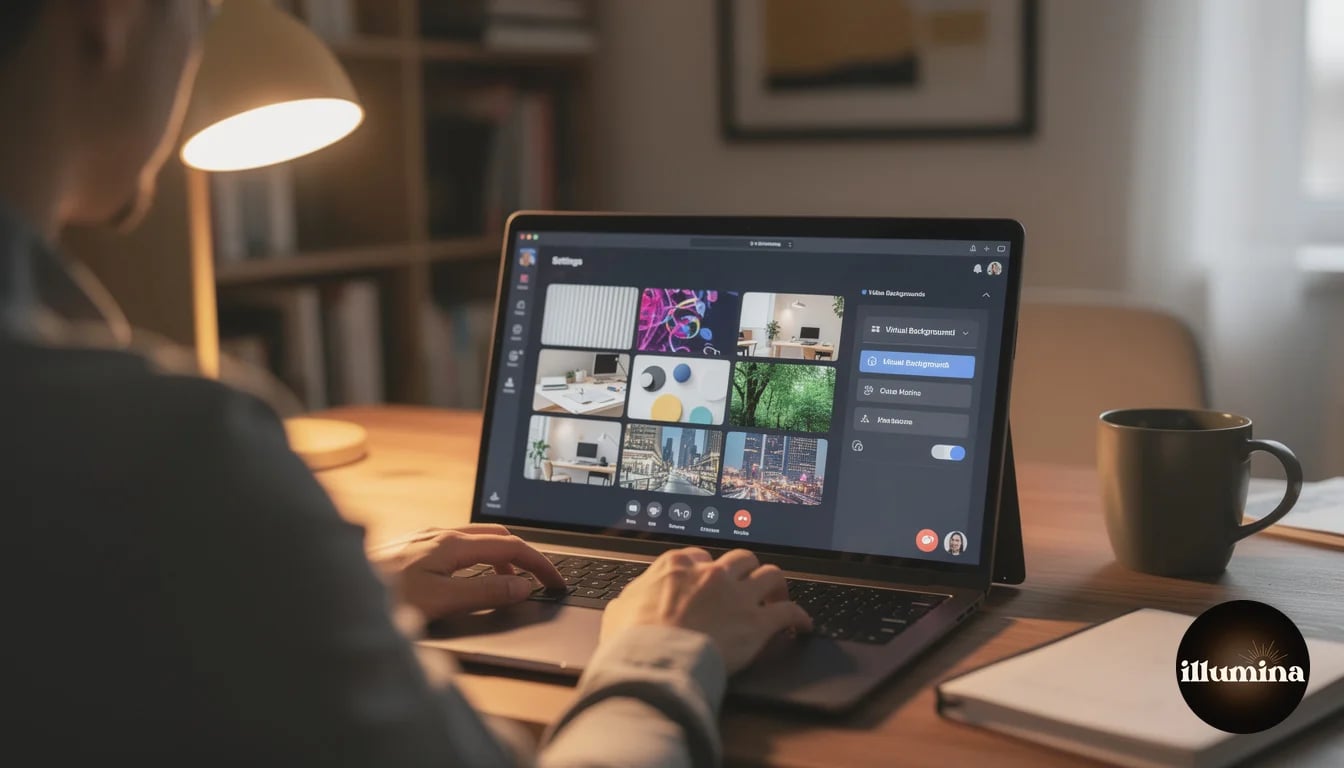
Open Google Meet and click the meeting link or start a new meeting. On the preview screen (before you join), look for the "Apply visual effects" button in the bottom-right of your video preview. It looks like a sparkle or person icon. Click it to open the effects panel.
The panel shows several options: no effect (your real background), blur (slight or strong), and a row of preset backgrounds. Scroll right to see all presets. At the end of the row, there is a "+" button to upload your own image. Click it, select a JPEG or PNG file from your computer, and it appears immediately as your background.
Once you select a background, it stays active for all future meetings until you change it. You do not need to re-apply it every time you join a call.
During a Meeting
If you are already in a meeting and want to change or add a background, click the three vertical dots (More options) in the bottom toolbar. Select "Apply visual effects" from the menu. The same panel appears, and you can switch backgrounds without leaving the call. Other participants will see the transition happen in real time, so do this during a quiet moment rather than while you are presenting.
On Mobile
Google Meet on iOS and Android supports virtual backgrounds too. Before joining, tap the sparkle icon on the preview screen. During a meeting, tap the three dots, then "Effects." The mobile app has the same preset backgrounds and custom upload option as desktop, though the edge detection is slightly less precise on phones due to lower processing power.
Upload your background before the meeting starts. Adding a custom background mid-call means navigating menus while people wait, and the transition can look jarring. Set it up on the preview screen, confirm it looks good, and join with everything already in place.
Best Backgrounds by Professional Context
Client Calls and External Meetings
Keep it clean and professional. A bookshelf with plants, a modern office with a window view, or a clean conference room. The background should suggest "I work in a professional environment" without screaming "this is fake." Avoid backgrounds with text, logos, or overly specific locations that might confuse the context. A generic professional office works for any industry and any client.
Color matters. Warm-toned backgrounds (cream walls, wooden bookshelves, warm lighting) make you appear approachable and trustworthy. Cool-toned backgrounds (glass offices, minimalist white rooms) read as modern and corporate. Match the tone to your industry and the client relationship.
Team Standups and Internal Meetings
Slightly more casual is fine. A home office with personality (plants, art, interesting bookshelf), a cozy reading nook, or even a tasteful living room. These backgrounds humanize you to teammates who see you daily. A sterile corporate office background every day in internal meetings creates unnecessary distance. Let some personality show.
That said, avoid distracting backgrounds even in internal meetings. A beach scene or city skyline is fun once, but daily it becomes visual noise that makes it harder for teammates to focus on your face and what you are saying. The best internal meeting backgrounds are pleasant but forgettable.
Job Interviews
Use the blur option or a simple, clean office background. Interviewers are evaluating your professionalism, and a virtual background that glitches or has visible edge artifacts can be distracting and subtly undermine your credibility. If your real background is reasonably tidy, blur is the safest choice because it shows your actual environment (proving you are professional) while hiding any clutter.
If you must use a virtual background for an interview, test it extensively before the call. Join a test meeting, move your hands around, turn your head, and check for flickering edges. Better to discover problems during a test than during "Tell me about your greatest weakness."
Education and Teaching
Teachers and professors should use backgrounds that are visually quiet. Students need to focus on the instructor and any shared content, not on a busy background. A simple solid color, a soft blur, or a clean classroom-style background works best. Avoid anything animated or highly detailed. For younger students, a slightly more colorful or thematic background can make lessons feel more engaging, but keep it secondary to the content.
Lighting: The Most Important Factor
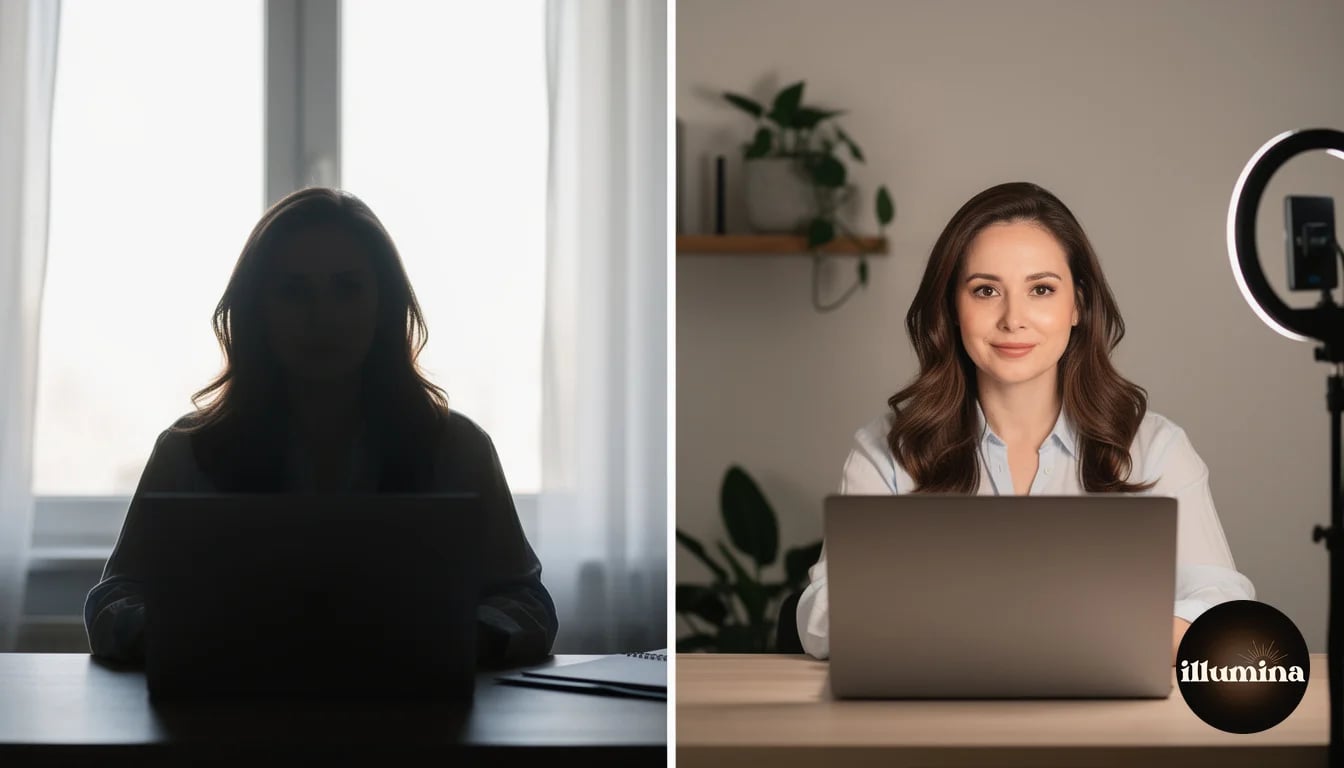
Google Meet's virtual background engine is the weakest of the three major video platforms (Zoom, Teams, Meet). It handles edges less precisely, struggles more with fine details like hair, and is more prone to flickering when lighting is poor. This makes good lighting not just a nice-to-have but a requirement for usable virtual backgrounds in Meet.
The fix is simple and free: face a light source. Sit with a window in front of you, or place a desk lamp behind your laptop screen pointing at your face. The light should be in front of you, illuminating your face, not behind you creating a silhouette. Backlighting is the single most common reason virtual backgrounds look terrible in Meet, because the algorithm cannot distinguish you from the background when your face is dark.
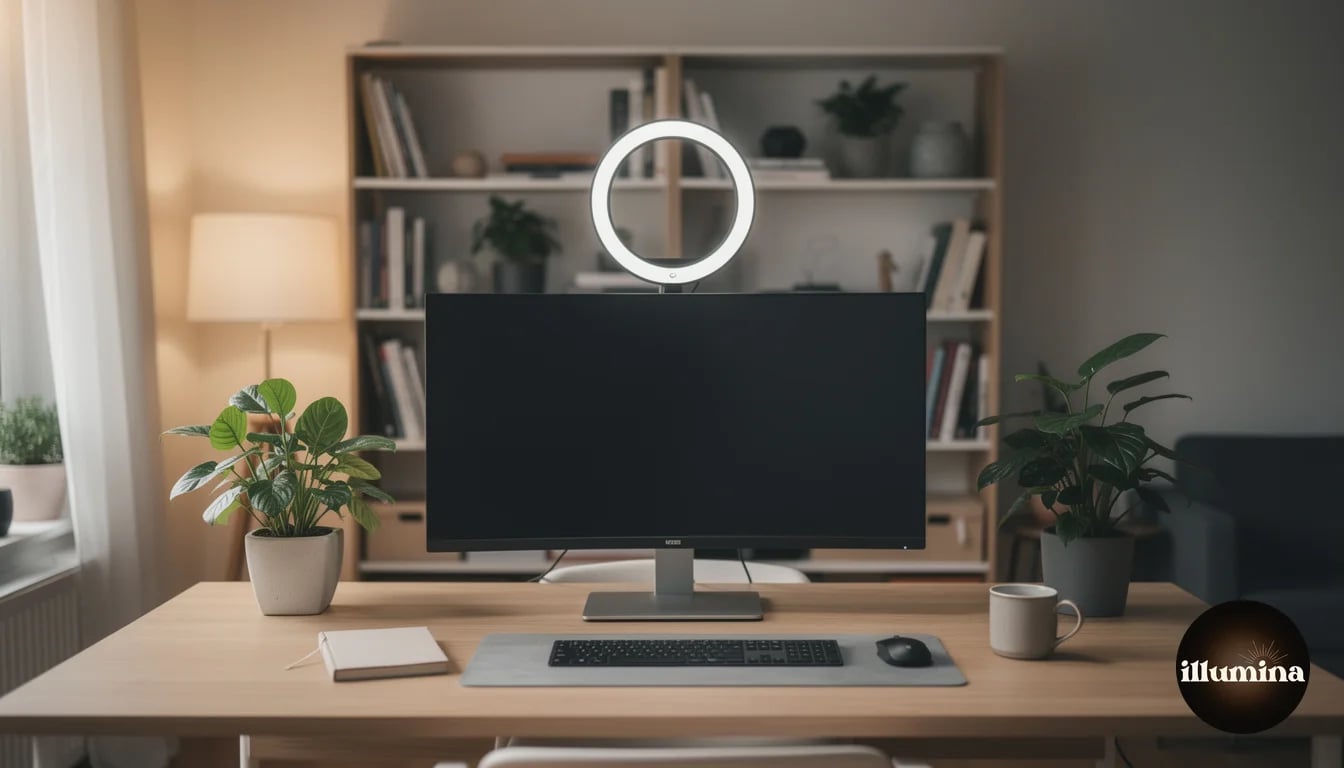
For a step up from desk lamps, a ring light mounted behind or above your monitor provides even, flattering light for $20-40. The circular light source minimizes harsh shadows on your face and ensures consistent illumination regardless of the time of day or weather. If you are on video calls regularly, a ring light pays for itself in how much better you look and how much better your virtual backgrounds work.
Avoid overhead-only lighting. The ceiling light in most rooms casts shadows under your eyes, nose, and chin, making you look tired and creating shadowed areas that the background engine reads as part of the background rather than part of you. If overhead lighting is your only option, add a reflective surface (a white piece of paper or a small bounce card) on your desk below your face to fill in the shadows.
The two-second lighting test: if you can clearly see both your eyes in the preview, your lighting is good enough. If one or both eyes are in shadow, move your light source or your position until both eyes are clearly visible. This simple check ensures enough front light for the background detection to work reliably.
Transform Your Photos
Give Your Photos the Wow Factor
Browse our collection of premium digital photo backdrops. 50 high-resolution print-ready backgrounds in each pack. Instant download.
Browse Backdrops



Camera Position and Framing
Camera height matters for both how you look and how well the virtual background renders. The camera should be at eye level or slightly above. Most laptop cameras sit below eye level on a desk, which angles up at your face (unflattering) and shows more ceiling behind you (harder for background detection).
Prop your laptop on a stack of books, a laptop stand, or an external monitor arm to raise the camera to eye level. This single change improves your appearance on camera more than any filter or background, and it gives the background algorithm a cleaner view of your silhouette against whatever is behind you.
Frame yourself from the chest up with some headroom. Too tight and you look cramped. Too wide and you become a small figure against a large background, which amplifies any edge detection issues. The news-anchor framing (head and shoulders, centered, palm-width of space above the head) is the standard for a reason.
Google Meet vs Zoom vs Teams: Background Comparison
If you use multiple platforms, the virtual background experience varies significantly.
Zoom has the best background engine overall. Edge detection is the most precise, it handles hair and fine details well, and it works acceptably even in poor lighting. Zoom also supports video backgrounds (short loops) and allows you to save multiple custom backgrounds for quick switching.
Microsoft Teams sits in the middle. Good edge detection, decent hair handling, and a nice library of built-in backgrounds. Teams is pickier about image quality than Zoom, so use the highest resolution images you can find. Teams also supports video backgrounds but they tend to cause performance issues on older hardware.
Google Meet is the most basic. Edge detection is functional but less refined, and it struggles noticeably with hair, loose clothing, and hand gestures. The built-in background library is smaller than Teams' or Zoom's. Custom uploads work fine but there is no way to save a library of favorites within Meet itself. The strength of Meet is its simplicity and its integration with Google Workspace, not its virtual background sophistication.
The practical takeaway: if you primarily use Google Meet, invest more in your physical setup (lighting, camera position, actual background tidiness) to compensate for the weaker virtual background processing. Good lighting on Meet looks better than great virtual backgrounds on Meet.
Creating Your Own Custom Backgrounds
Google's preset backgrounds are limited and generic. Custom backgrounds let you present a unique, professional image that matches your personal brand.
For a quick custom background, photograph your actual office or workspace when it looks its best. Clean the desk, arrange books neatly, add a plant, and shoot at your webcam's angle and position. The result is a background that is literally your own room, which looks natural because it is your room. Use your phone in landscape mode and try to match the focal length and perspective of your webcam.
For something more polished, use high-quality stock images or professionally designed virtual backgrounds. Look for images that are landscape orientation, at least 1920x1080 resolution, and have a natural-looking depth of field. The best backgrounds have a slightly out-of-focus quality that mimics what a real webcam would see if there were a room behind you. Razor-sharp backgrounds look obviously virtual.
Professional virtual background collections designed specifically for video meetings offer curated sets that are properly framed, color-graded, and optically matched to webcam perspectives. These are a significant step up from random stock photos, because they are designed for exactly this purpose. Browse our Zoom and office background collections for options built to look natural on camera.
Background Ideas by Industry
Different industries have different expectations for what shows up behind you on a video call. Here are recommendations that match professional norms.
Technology and startups. You have the most freedom. Creative home offices, interesting wall art, plants, and personality are expected. Avoid anything that looks like you are trying too hard to be corporate. The startup world values authenticity, so a real bookshelf with actual books you have read is better than a stock photo of a library you have never visited.
Legal and financial services. Conservative and clean. A bookshelf with law or finance books, a wood-paneled office, or a simple blur over a tidy room. Clients in these industries expect professionalism and gravitas. An overly casual background undermines the trust that these relationships depend on.
Healthcare and therapy. Warm, calming, and private. A soft-lit room with neutral colors, comfortable furniture, or nature elements like plants. For therapists especially, the background should feel safe and confidential. Avoid public-looking spaces (coffee shops, open offices) that might make patients uncomfortable discussing personal matters.
Education. Clean and focused. A whiteboard or bulletin board in the background can actually be functional, giving you a space to write or pin reference materials during lessons. For tutors and coaches, a bookshelf related to the subject area adds credibility. Keep decorations minimal so students are not distracted from the lesson content.
Creative industries. This is where personality matters most. Designers, photographers, artists, and marketers can use backgrounds that showcase their aesthetic sensibility. A studio with interesting equipment visible, a gallery wall of your work, or a design-forward home office all reinforce your creative credentials through your environment.
Real estate. Property-related backgrounds work well: a beautiful interior, an architectural detail, or a city skyline. Some agents use a background showing one of their current listings, which is clever branding that subtly markets their portfolio during every call. Sales professionals in any field can apply this same principle: use a background that reinforces what you sell or the lifestyle your product enables, without being overtly promotional.
Regardless of your industry, the universal rule is that your background should support the conversation, not compete with it. If someone mentions your background during a call, it either worked perfectly ("nice office!") or failed completely ("what is that behind you?"). Aim for the first reaction or no reaction at all.
Troubleshooting Common Issues
Background flickering around edges. This is almost always a lighting problem. Add more front light and reduce backlight. If the flickering persists, try the blur option instead of a virtual background, as blur is processed differently and is more forgiving.
Hair disappearing or merging with background. Tie back loose hair if possible, or use a background color that contrasts with your hair color. Dark hair against a dark background is the worst combination for edge detection. A lighter background or a headband that creates a clear edge helps.
Hands vanishing when you gesture. Move your hands more slowly. Quick gestures outpace the background processing, causing your hands to momentarily disappear into the virtual background. Keep hand movements deliberate and within the main frame rather than at the edges.
Virtual background not available. Some older devices do not support virtual backgrounds in Google Meet. Minimum requirements include a recent version of Chrome, hardware acceleration enabled, and a CPU that is not under heavy load from other applications. Close unnecessary tabs and applications to free up processing power for the background rendering.
When in doubt, use blur instead of a virtual background. Google Meet's blur is more reliable than its virtual backgrounds because it does not need to render a separate image. It just softens what is already there. If your lighting is not ideal or your hardware is older, blur gives you the privacy benefit of hiding your background without the edge detection problems of a full virtual replacement.
Premium backgrounds for Google Meet, Zoom, and Teams



Google Meet virtual backgrounds are a practical tool for maintaining professional appearances on video calls, but they demand more from your physical setup than Zoom or Teams do. Invest a few minutes in proper lighting and camera positioning, choose a background that matches your professional context, and test it before your next important call. The best virtual background is one that nobody notices, because it just looks like a normal room behind a well-lit professional.
Transform Your Photos
Give Your Photos the Wow Factor
Browse our collection of premium digital photo backdrops. 50 high-resolution print-ready backgrounds in each pack. Instant download.
Browse Backdrops