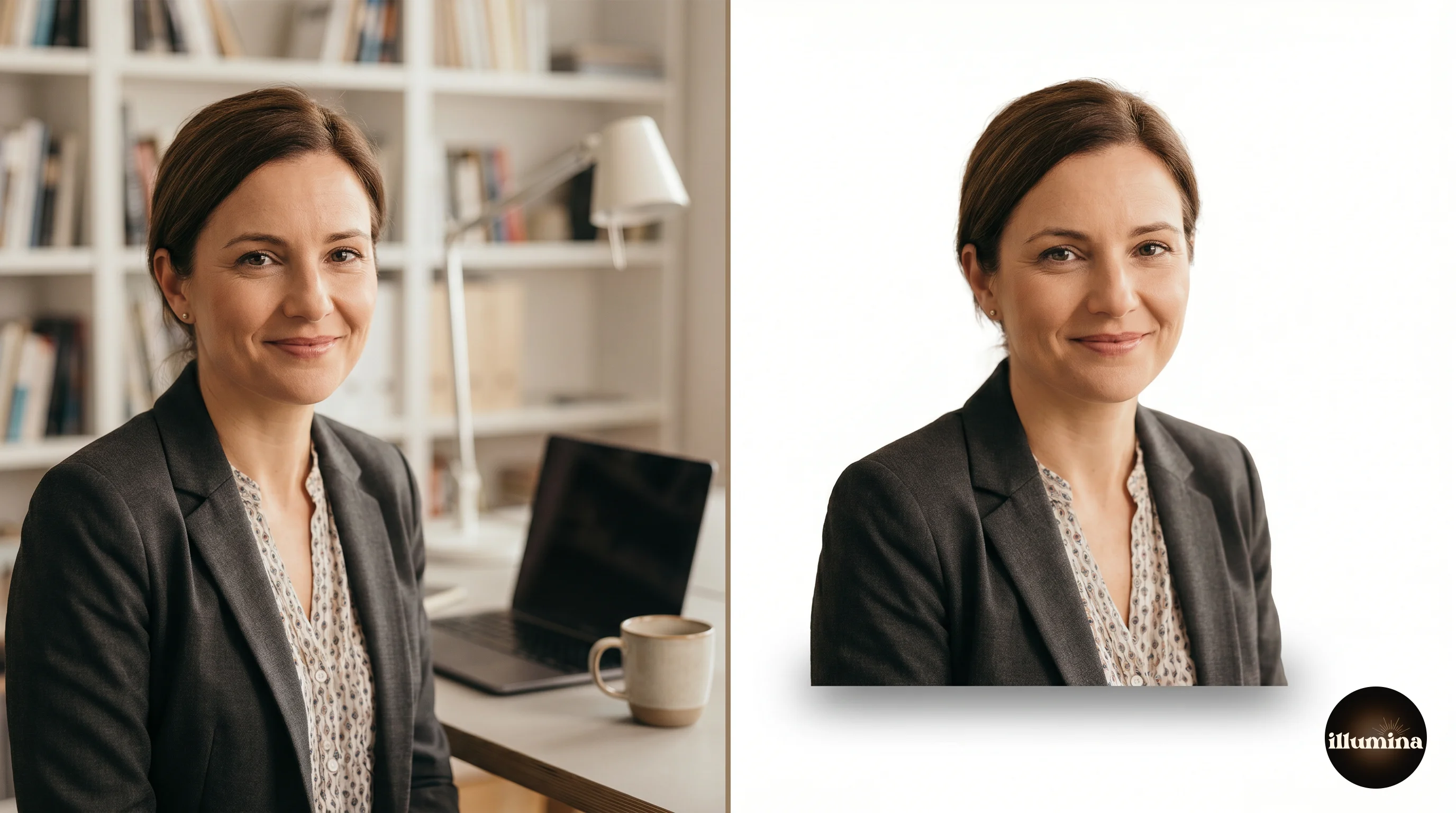
The Quick Answer
remove.bg is the best free background remover for most people. It handles hair better than any other free tool, processes in under three seconds, and the one-click workflow means there's nothing to learn. The catch is that free downloads are capped at a lower resolution. For full-res output, you pay per image or subscribe. If you need full resolution for free, Photopea is a browser-based Photoshop clone that gives you manual control and exports at full size without charging anything.
I tested ten background removal tools on the same set of images (a portrait with flyaway hair, a product on a textured surface, a group shot, and a pet) and ranked them on edge quality, hair handling, speed, resolution limits, and cost. Here's what I found.
How I Tested
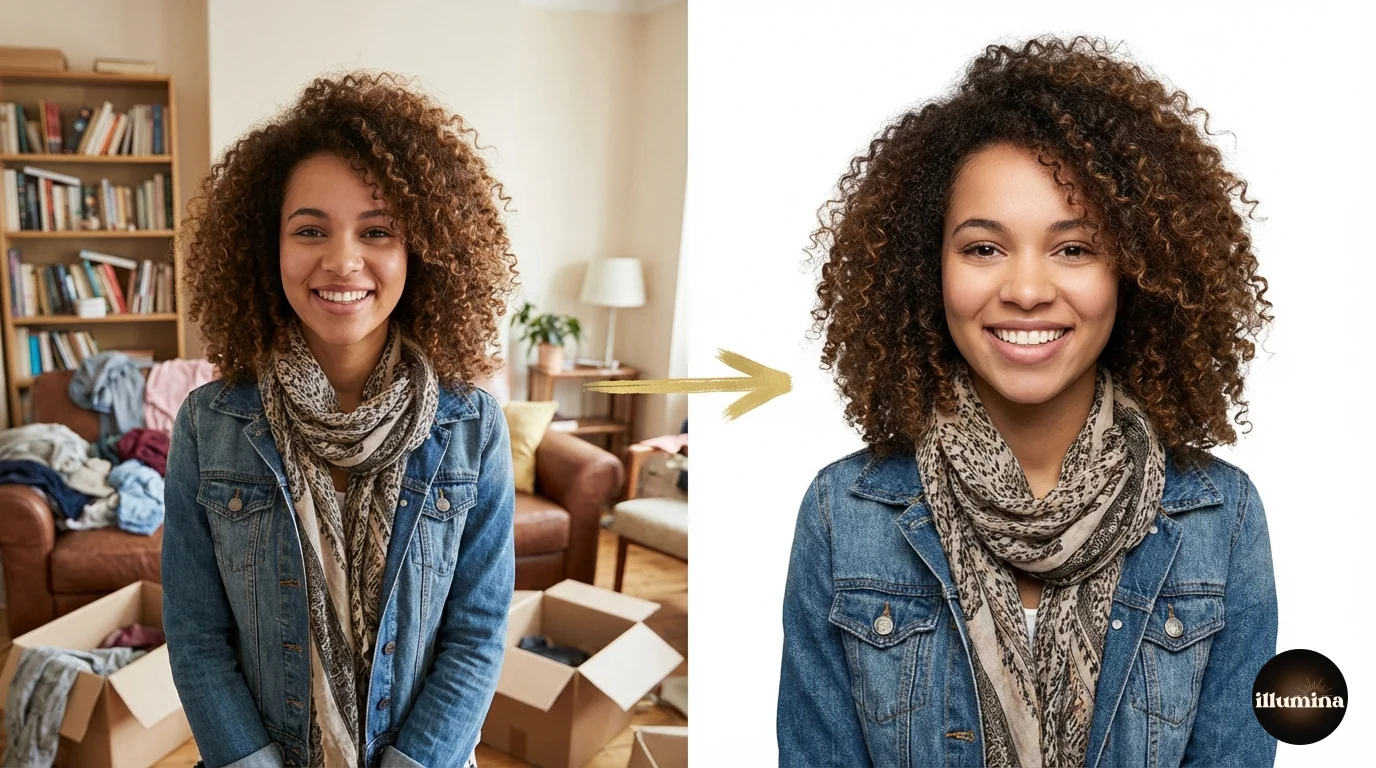
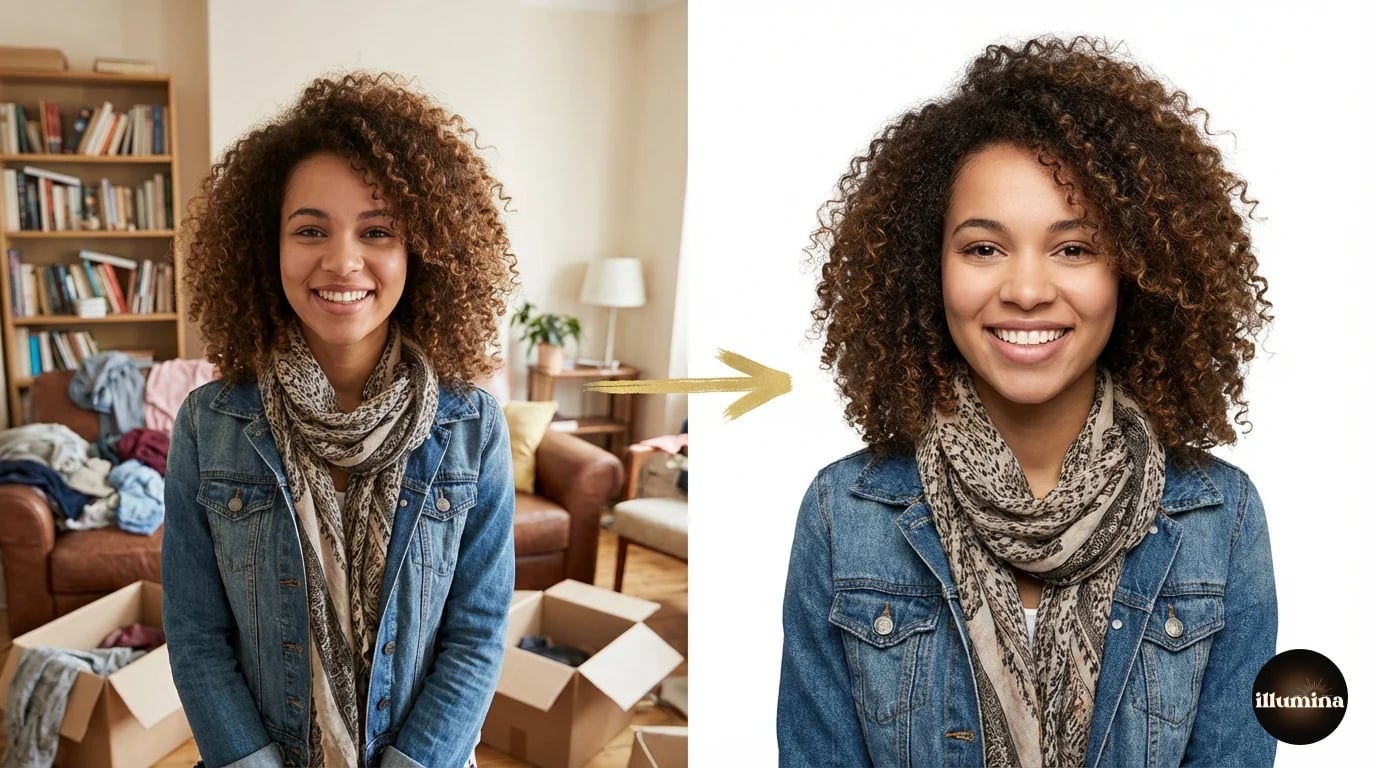
I ran the same four test images through each tool without any manual cleanup. The four test images were chosen to stress-test different weaknesses: a woman with curly flyaway hair against a busy background (tests edge detection), a ceramic vase on a wooden table (tests product isolation), a family of four standing close together (tests multi-subject handling), and a golden retriever on grass (tests fur edges).
I compared the results at 100% zoom on a calibrated monitor, looking specifically at hair edges, object boundaries, missed areas, and any artifacts left behind. Then I checked the output resolution against the original. Some tools downsample the free output, which matters if you're printing or using the cutout in a high-res design.
I also timed each tool from upload to download-ready. Speed matters when you're comparing tools for regular use. A tool that produces slightly better edges but takes 30 seconds isn't necessarily better than one that produces good-enough edges in 2 seconds, especially if you're processing more than a few images.
One thing I didn't test: privacy. If you're uploading sensitive images (medical, legal, personal), be aware that most web tools send your images to their servers for processing. Photopea is the exception. It processes entirely in your browser, which means your images never leave your device. For anything confidential, that matters.
The Rankings
1. remove.bg
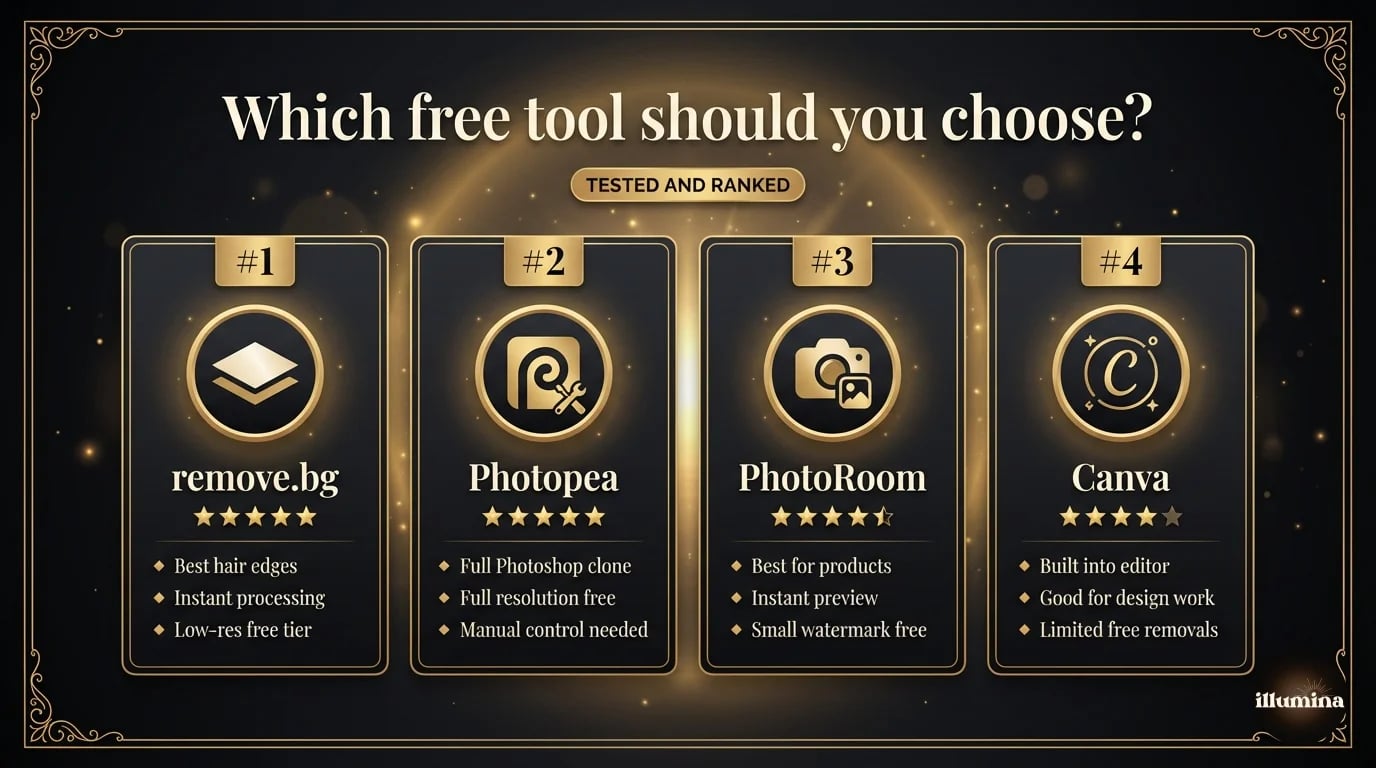
Best overall. The AI is trained specifically on background removal and nothing else, which shows. Hair edges were the cleanest of any automated tool I tested. Curly flyaway strands that every other tool chopped off were preserved with only minor fringing. The vase cutout was near-perfect. The group shot handled well with all four people cleanly separated. The dog's fur had a slight halo in a few spots but was still better than the competition.
Speed is instant. Upload, wait two seconds, download. No account required for the first few uses. The interface is as simple as it gets: one button, one result.
The downside: free downloads are limited to 0.25 megapixels (roughly 625x400). For social media thumbnails that's fine. For anything larger, you need to pay ($1-2 per image or $9/month for a subscription). This is the main reason remove.bg isn't the automatic winner for every use case. If you need full resolution for free, keep reading.
2. Photopea
Photopea is a free browser-based photo editor that's essentially a Photoshop clone. It has Select Subject, Magic Wand, layer masks, and Refine Edge. The background removal isn't one-click like remove.bg. You have to use the selection tools and add a mask yourself. But the results are as good as your skill level, and the output is always full resolution because it's processing locally in your browser.
For anyone comfortable with Photoshop-style tools, Photopea is the best free option, full stop. No resolution limits, no watermarks, no subscription. It's supported by ads, which are unobtrusive. The learning curve is real, but if you already know Photoshop, you'll feel at home immediately. Our Photoshop background removal guide covers the same techniques that work identically in Photopea.
3. PhotoRoom
PhotoRoom started as a mobile app and expanded to web. The AI is aggressive on edges (in a good way) and it handles product photos better than most competitors. The instant preview against different backgrounds is a nice touch. You see the cutout quality immediately and can decide whether to use it or try a different source photo.
Free tier adds a small watermark to the bottom corner. It's subtle enough that you might get away with it for personal use, but for anything professional you'll need the paid plan. Hair handling is good but a step below remove.bg. Product isolation is where PhotoRoom really excels.
4. Canva Background Remover
Canva's built-in Background Remover is convenient if you're already designing in Canva. The quality is middle-of-the-pack. Clean subjects with good contrast come out fine. Hair edges are chunky compared to remove.bg and PhotoRoom. The main advantage is workflow: remove the background and drop the cutout straight into a Canva design without downloading, re-uploading, or switching tools.
Free users get a limited number of removals per month (it changes, but usually 3-5). Canva Pro gives you unlimited. And don't forget to tick the "Transparent background" checkbox on download, or you'll get a white background instead of transparency. I've written about this specific issue in our transparent backgrounds guide because it catches so many people.
Canva's Background Remover is good enough for social media. If your cutout is going into an Instagram story, a Facebook ad, or a Pinterest pin, the edge quality won't matter at those viewing sizes. Save the pro tools for print and large-format work.
5. Adobe Express
Adobe Express uses the same AI as Photoshop's Select Subject but wrapped in a simplified interface. One-click removal, decent quality, free to use. The edges are clean on well-separated subjects. Hair handling is slightly better than Canva but below remove.bg.
The free tier limits you to a certain number of actions per month and exports with an Adobe Express watermark on some outputs. If you have an Adobe Creative Cloud subscription, Express is included and watermark-free. For Adobe users, it's a no-brainer quick tool. For everyone else, remove.bg is still better for dedicated background removal.
One nice feature of Adobe Express: it integrates with Creative Cloud storage. If you use Lightroom or Photoshop, images you've edited there are accessible in Express, and cutouts you make in Express sync back. For Adobe ecosystem users, the workflow continuity is a real advantage over standalone tools.
6. Pixlr
Pixlr offers both an AI background remover and a full editor. The AI removal is decent for simple subjects but struggles with complex hair and fur. Where Pixlr adds value is the editor: after the AI removes the background, you can manually clean up edges with erasers, brushes, and selection tools. It's not as powerful as Photopea's editor, but it's more approachable for beginners.
Free with ads. No resolution limits on the web version. The mobile app has some features locked behind a subscription. One thing Pixlr does well that others don't: it lets you adjust the AI's sensitivity before processing. If the default result is too aggressive (removing parts of the subject) or too conservative (leaving background fragments), you can tweak it and reprocess. Most other tools give you one result with no tuning options.
7. Fotor
Fotor has a background remover that works fine on simple subjects (product shots, clean portraits) but falls behind on anything complex. Hair edges are rough. Multi-subject detection is inconsistent. The tool is buried inside Fotor's larger photo editor, so there's more clicking to get to it than with dedicated tools like remove.bg.
Free with limited daily uses. The quality doesn't justify the extra friction compared to the top-ranked options.
8. Slazzer
Slazzer is a dedicated background removal tool similar to remove.bg. The AI quality is slightly below remove.bg on hair but comparable on products and simple subjects. Free downloads are limited to preview resolution. The main differentiator is pricing: Slazzer's paid plans are cheaper per image than remove.bg if you're processing in bulk.
Honorable Mentions
GIMP (free, open source desktop app) has background removal capabilities but the workflow is clunky and slow compared to modern AI tools. It's worth learning if you need a free desktop editor for other reasons, but for dedicated background removal there are better options.
Clipping Magic is a web tool that combines AI detection with manual refinement. You can draw green (keep) and red (remove) lines to guide the AI. Quality is good but the free tier is very limited. It occupies a middle ground between the one-click tools and full manual editors like Photopea.
Icons8 Background Remover is fast and free for standard resolution. Quality is slightly below remove.bg. Worth trying if you've exhausted your remove.bg free credits for the day.
iPhone and iPad: Built-In Option
If you're on an iPhone XS or newer running iOS 16+, you already have a background remover built into your phone. Press and hold on any subject in the Photos app, and iOS lifts it out with a transparent background. It's free, requires no internet, and works in about a second.
The quality is competitive with the mid-tier web tools (similar to Canva's level). Hair edges get chopped, but for stickers, messages, and quick composites it's more than good enough. We cover this in detail in our iPhone background removal guide.
Transform Your Photos
Give Your Photos the Wow Factor
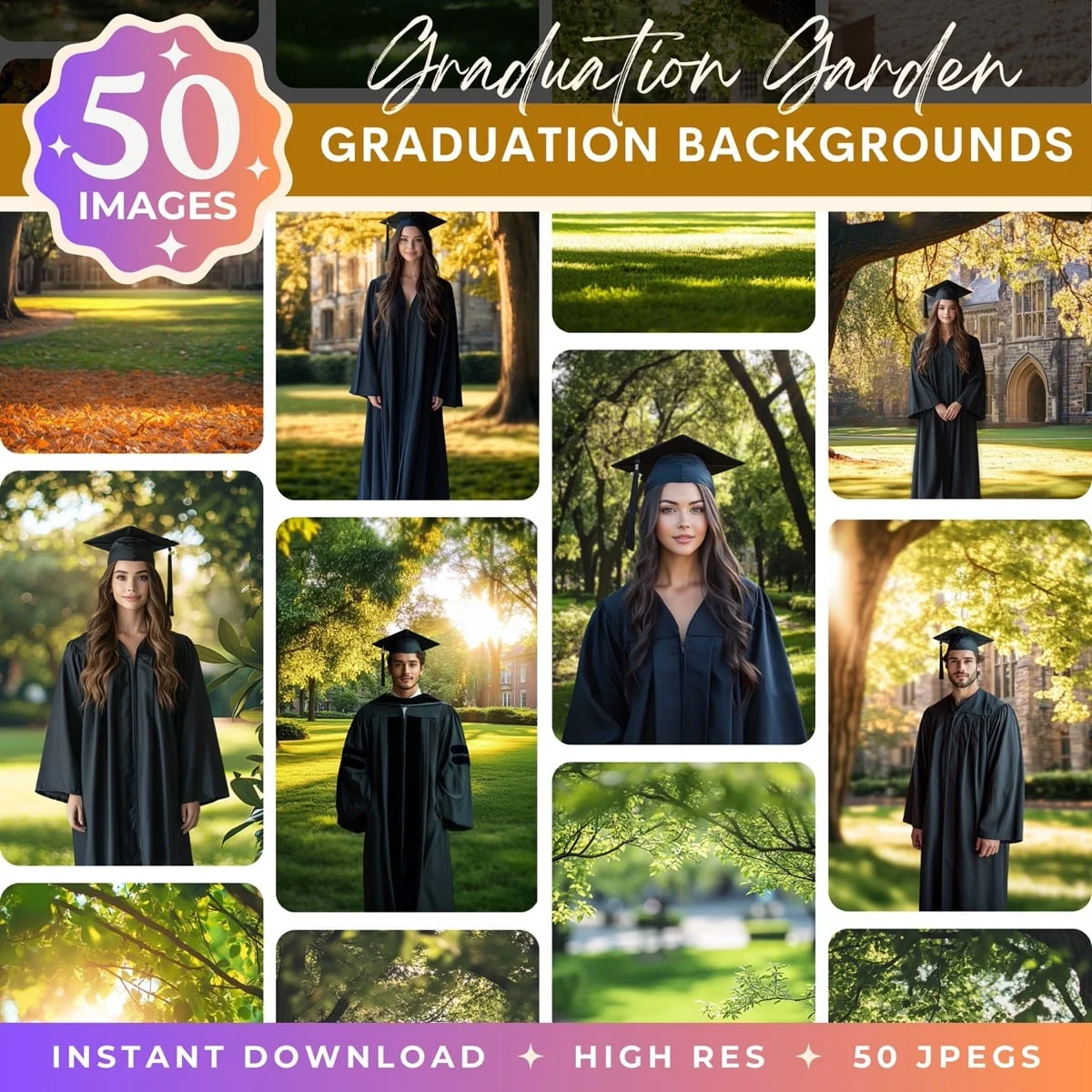
Browse our collection of premium digital photo backdrops. 50 high-resolution print-ready backgrounds in each pack. Instant download.
Browse Backdrops


Head-to-Head: Hair Test Results
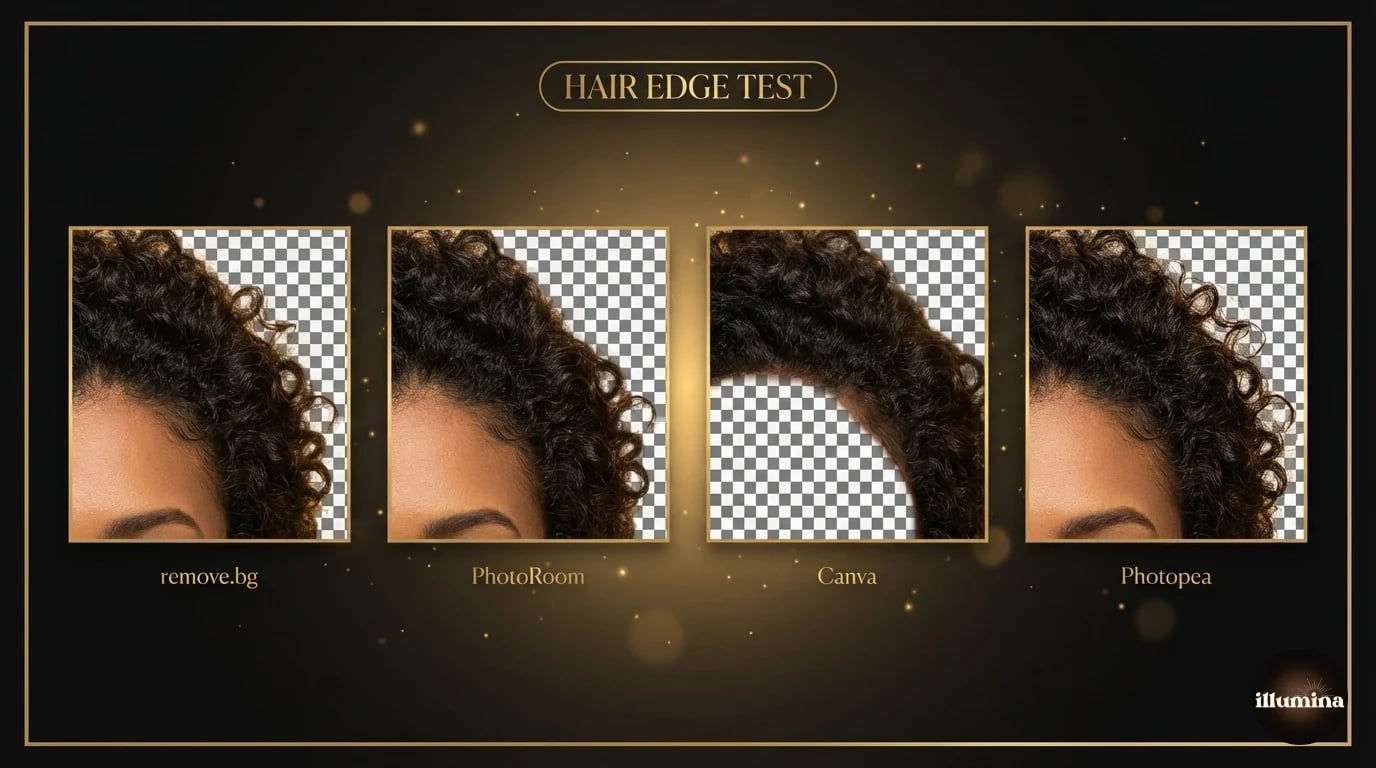
Hair is the hardest test for any background remover. Here's how the top four performed on the curly hair portrait at 100% zoom.
remove.bg preserved individual curls and wispy strands with minimal fringing. A thin warm halo was visible on very close inspection but wouldn't be noticeable at normal viewing sizes. This was the best result of any automated tool.
PhotoRoom kept most of the curls but clipped the outermost wisps. The edge was cleaner than Canva but not as fine as remove.bg. For social media use, you wouldn't notice the difference.
Canva cut aggressively around the hair line, losing about 5-10mm of the outer curl pattern. The remaining edge was relatively smooth but obviously simplified. Fine for a quick social post. Not ideal for a headshot or print.
Photopea, using Select Subject followed by Refine Edge, produced the best result overall. But it required about two minutes of manual work versus the one-click speed of the others. The trade-off is always speed versus quality, and Photopea lands firmly on the quality side.
No AI tool handles hair perfectly. If hair edge quality matters for your specific project (bridal portraits, beauty photography, large prints), use Photoshop or Photopea with the Refine Edge brush. AI tools are fast but they sacrifice fine strands for speed.
Which Tool Should You Use?
For one-off quick removals where resolution doesn't matter: remove.bg. Fastest, cleanest, zero learning curve.
For full-resolution free output with manual control: Photopea. It's free Photoshop in a browser.
For product photography and e-commerce: PhotoRoom. Best at isolating objects and it has built-in templates for listing images.
For compositing inside a design tool: Canva. Remove the background and build your design in the same tab.
For iPhone users who want instant results: the built-in Lift Subject feature. No download needed.
For professionals who need the best possible edges: Photoshop or Photopea with manual Refine Edge. Nothing automated matches the quality of a skilled hand with the right tools.
For e-commerce product listings at scale: PhotoRoom's batch processing plus built-in listing templates make it the most efficient option for sellers who need consistent backgrounds across hundreds of products.
For teams that need a shared tool: Canva Pro or Adobe Express with a team subscription. Both let multiple people access background removal within a shared design workspace, which simplifies brand consistency.
Batch Processing: Which Tools Handle Volume?
If you need to remove backgrounds from more than a handful of images, the one-at-a-time workflow gets painful fast. Here's how the top tools handle batch processing.
remove.bg has a desktop app and an API that both support batch processing. Upload a folder, get cutouts back. The API is particularly useful if you're integrating background removal into an automated workflow (e-commerce product uploads, for example). Batch processing requires a paid plan. Pricing is per image but drops significantly at volume.
PhotoRoom supports batch processing on its paid plan. Upload multiple product photos, get all of them processed in parallel. The results are consistent, which matters when you're doing a set of product listings that need to look uniform.
Photopea can be batch-automated using Photoshop Actions (it supports the .atn format) combined with its batch processing dialog. It's more manual setup than the AI tools but it's completely free regardless of volume.
Canva doesn't support batch background removal. Each image has to be processed individually inside the editor. For volume work, Canva is the wrong tool.
For most people doing occasional removals, batch processing doesn't matter. But if you're a photographer processing a session of 50 headshots or an e-commerce seller with 200 product photos, the batch capability of remove.bg or PhotoRoom will save you hours compared to clicking through one image at a time.
A Note on "Free"
Most of these tools are free with limits. Resolution caps, daily use limits, watermarks, or feature locks. For occasional personal use, the free tiers are enough. For regular professional use (more than a few images per week), you'll hit the limits fast and either need to upgrade or switch to a fully free tool like Photopea.
The economics usually work out to one of two paths: pay $5-15/month for a dedicated AI tool that's fast and automated, or use Photopea for free and invest your time instead of money. Which path is better depends on how many images you're processing and how much your time is worth. For five images a month, Photopea makes sense. For fifty, paying for remove.bg or PhotoRoom pays for itself in time saved.
Try remove.bg first, then Photopea. If remove.bg handles your image well at preview resolution, you know the cutout is good and you can decide whether the full-res version is worth paying for. If it doesn't handle it well, switch to Photopea for manual control. This two-step approach covers 95% of use cases.
And remember: the background remover is just step one. What makes the cutout useful is what you do with it next. Drop it onto a new backdrop, layer it into a design, composite it into a scene. The cutout is the raw material. The creative work comes after. If you're not sure where to start with compositing, our guides on Canva compositing and Photoshop background removal walk through the full process from cutout to finished image.
Once you have your cutout, the next step is usually placing it onto a new background. Our guide to adding backgrounds covers the full workflow, and our Canva compositing guide walks through the no-Photoshop approach. For purpose-built backdrops designed for portrait compositing, browse what we offer at Illumina Backdrops.
Professional backdrops to pair with your cutouts


Transform Your Photos
Give Your Photos the Wow Factor
Browse our collection of premium digital photo backdrops. 50 high-resolution print-ready backgrounds in each pack. Instant download.
Browse Backdrops